

Open your account settings
Click your name at the top of the sidebar, then click Settings (or press ⇧⌘,). Settings opens on Account.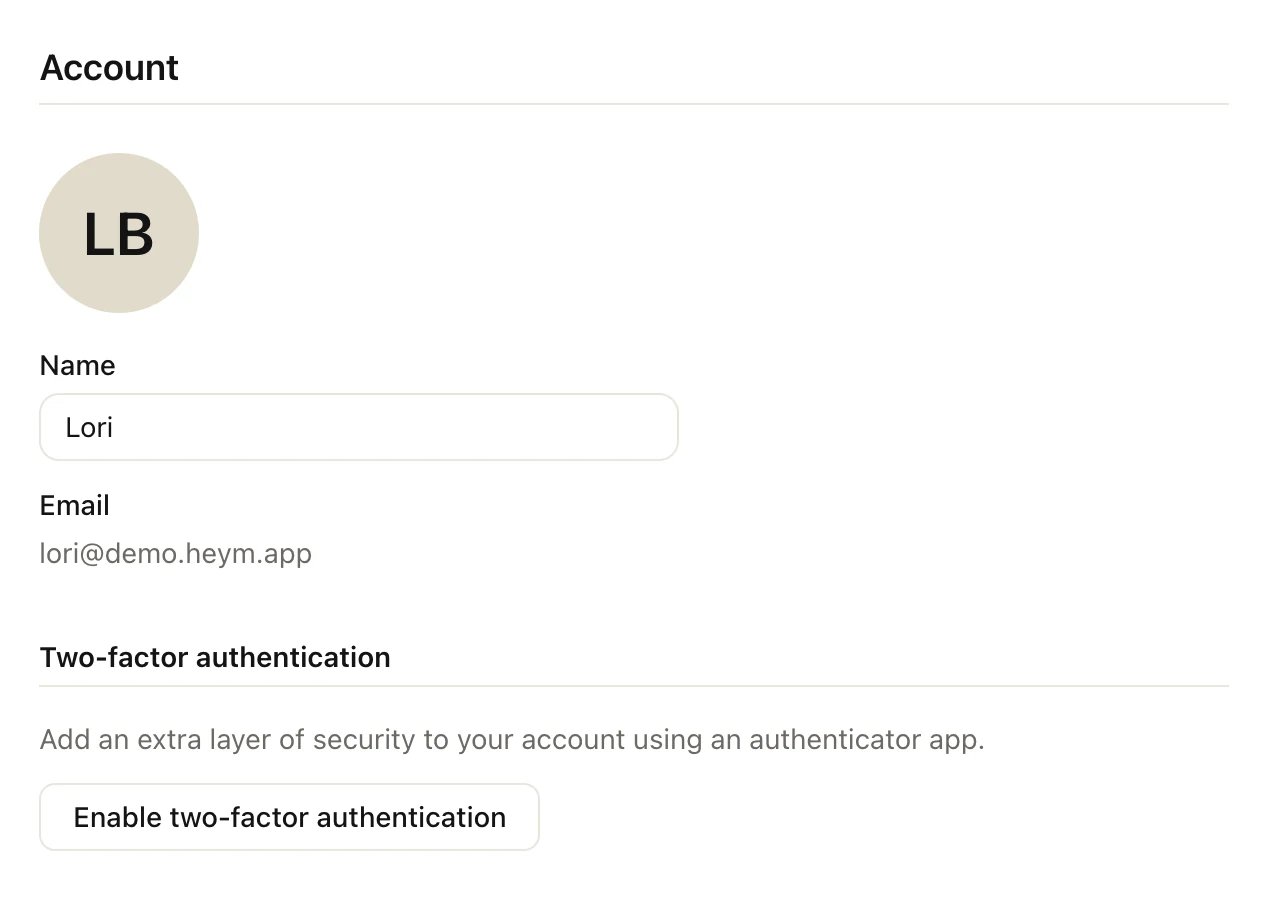
Settings → Account
Change your name and photo
- Name: click the Name box, type, then click anywhere else. Heym saves it when you leave the box. It’s the name in the sidebar and in Heym’s greetings.
- Photo: click the round photo (it shows your initials until you add one) and choose a JPEG, PNG, GIF or WebP image of up to 5 MB. If nothing changes after you pick an image, it’s over 5 MB or in another format: pick a smaller JPEG, PNG, GIF or WebP. Click the photo again to replace it. To remove it, click the × on its corner.
Change the language
- In Settings, click Preferences.
- Next to Language, choose English or Deutsch.
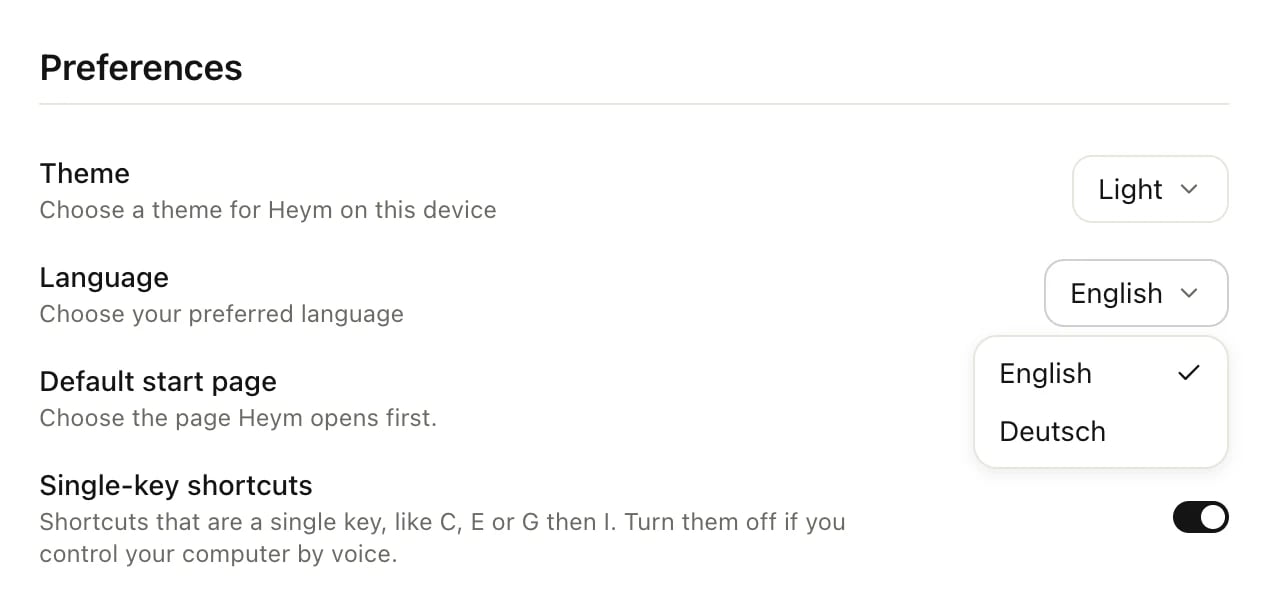
Settings → Preferences with the Language menu open
Your email address
Settings → Account shows the email you sign in with. You can’t change it in Heym. Heym doesn’t use passwords. You sign in with Continue with email (Heym emails you a sign-in link, and in the Mac app a 6-digit code you type in), Continue with Google or Continue with Apple. If you need to use a different email address, write to support@heym.app. Trouble signing in? See I can’t sign in.Turn on two-factor authentication
With two-factor authentication, signing in also asks for a 6-digit code from an authenticator app on your phone.1
Start the setup
In Settings → Account, click Enable two-factor authentication.
2
Scan the QR code
Scan the QR code with your authenticator app. If you can’t scan it, click Can’t scan? Enter key manually and type the key into the app.
3
Confirm with a code
Enter the 6-digit code the app shows, then click Verify & enable. The section now shows that two-factor authentication is enabled and offers Disable.
Log out
Click your name at the top of the sidebar, then click Log out.Delete your account
Deleting your account removes your tasks, goals, habits, notes, life areas and everything else in your account. Life areas, goals and projects you shared are deleted for the people you shared them with too, including what they added. Heym waits 30 days before it deletes anything, so you can change your mind.1
Open the Danger zone
In Settings → Account, scroll down and click Delete account… under Danger zone.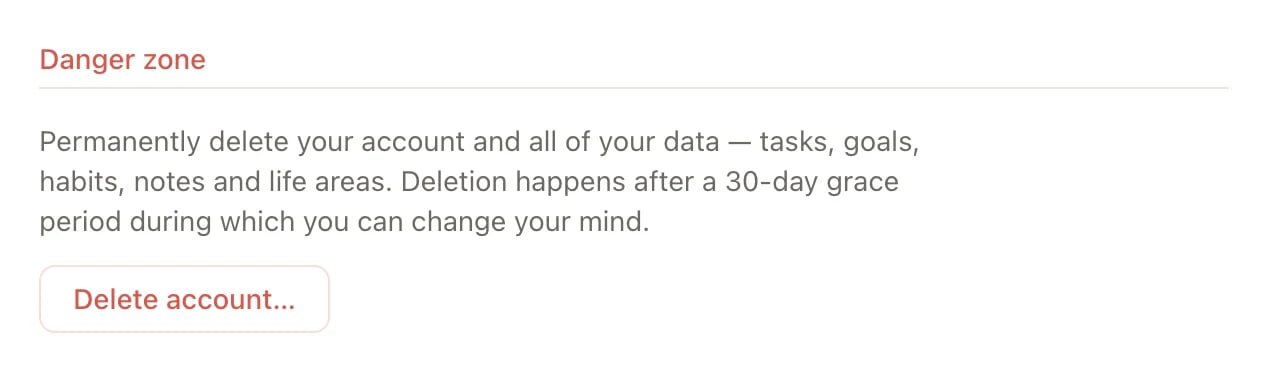
2
Confirm with your email
Type the email address you sign in with, then click Schedule deletion.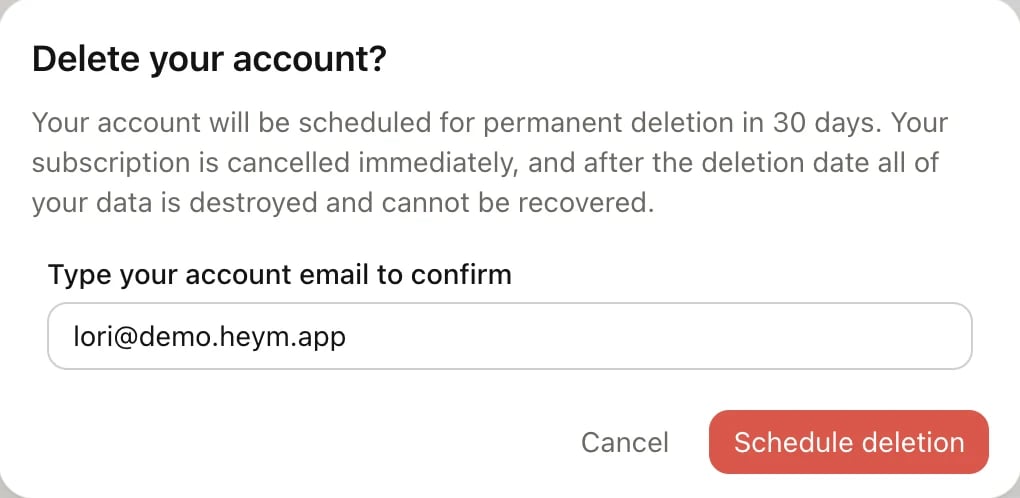
3
Confirm it's you, if Heym asks
If you signed in more than 10 minutes ago, Heym shows Confirm it’s you. Enter the 6-digit code Heym emails you, or the code from your authenticator app if two-factor authentication is on, and click Verify.
Change your mind
Click Cancel deletion in the banner, or in Settings → Account under Danger zone. Your account and data stay as they are. Signing in alone doesn’t cancel the deletion. A monthly or yearly subscription doesn’t come back when you cancel the deletion, because it ended when you scheduled it. To get Pro again, subscribe again from the menu under your name. Lifetime isn’t affected.Related
Privacy and your data
What Heym stores, where, and how to get a copy.
Manage Pro
Manage or cancel your subscription.
Can't sign in
Sign-in links, codes and two-factor problems.