

The email doesn’t arrive
After you click Continue with email, Heym shows Check your email and the address it sent the link to.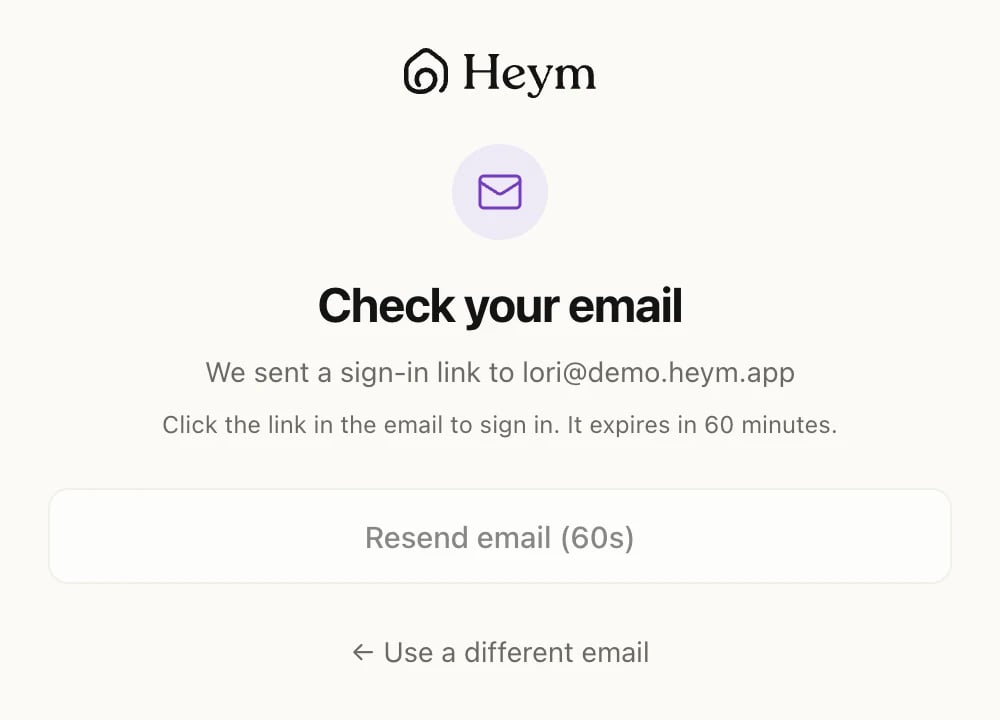
The screen after you ask for a sign-in link
- Check the address on that screen. If it has a typo, click Use a different email and type it again. For Gmail, Heym drops dots and anything after a +: it’s still your inbox.
- Look in your spam or junk folder.
- Still nothing after a minute? Click Resend email. It’s available again 60 seconds after each email.
The email shows a code, but there’s nowhere to type it
The email starts with a 6-digit code. The code is for the Mac app. In a browser, click the link below the code instead. It works in the browser where you asked for the email.The link says “Authentication failed”
If clicking the link brings you back to the sign-in page with Authentication failed. Please try again., the link didn’t work. Ask for a new one from the same page.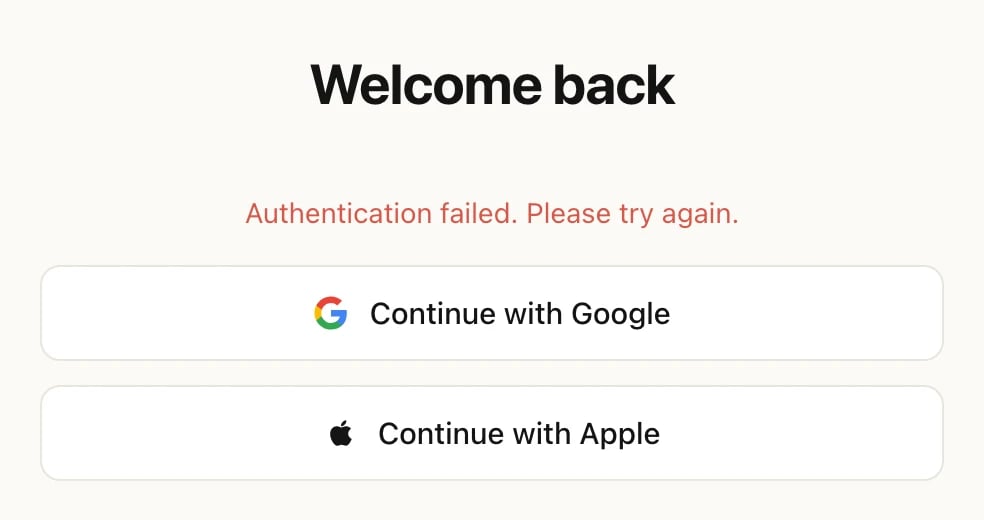
- It’s more than 60 minutes old.
- You already used it. Each link signs you in once.
- You opened it in a different browser or on another device. Open the link in the same browser where you asked for it.
- You clicked an older email. After Resend email, only the link in the newest email works.
Signing in to the Mac app
In the Mac app, Continue with Email emails you a 6-digit code. Type it into the app and click Sign in. No email? Click Resend code (available again after 60 seconds), or Back to fix the address. If the app doesn’t accept the code, use the one from the newest email: each code works once, for 60 minutes. Resend code gets you a new one. The link in the email works too, but only while the app’s sign-in window is still open. If you closed it or quit Heym in between, the app says That sign-in link can’t be used anymore. Type your email again to get a fresh code. Continue with Google and Continue with Apple finish in your browser. When the browser shows Opening Heym…, it hands you back to the app. If your browser asks whether to open Heym, allow it. If the app doesn’t come to the front, click Open Heym.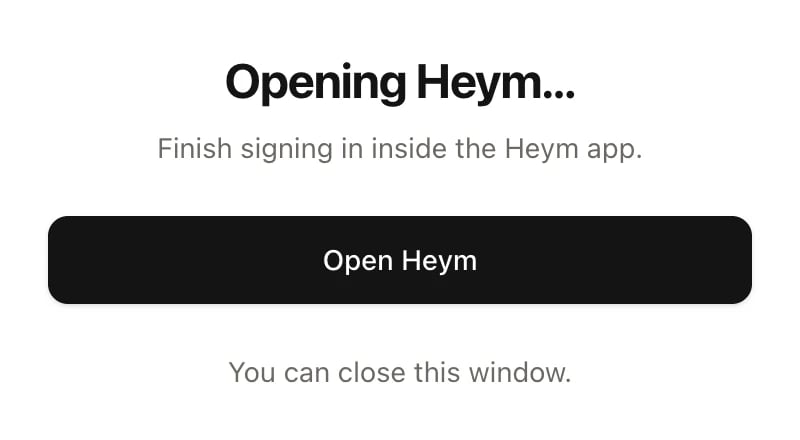
Heym shows the setup again, or your data is gone
If Heym starts the setup again (Welcome to Heym) after you sign in, or your goals and tasks are missing, you’re probably in a second account. Heym tells accounts apart by email address. A sign-in method that gives Heym a different address opens a new account with only the starter life areas. This happens when you:- chose Hide My Email while signing in with Apple (Apple then gives Heym a different address),
- picked a different Google account, or
- typed another of your email addresses.
Heym asks for a two-factor code
If you turned on two-factor authentication, Heym shows Two-factor verification after you sign in. Type the current 6-digit code from your authenticator app. Heym checks it as soon as you type the last digit, or click Verify. To sign in with a different account instead, click Back to sign-in.- Invalid code. Please try again. The code changes every 30 seconds. Type the one your app shows now. If codes keep failing, check that your phone sets its time automatically.
- No authenticator app anymore? Heym has no backup codes. Write to support@heym.app from the email address you sign in with.
Still can’t sign in?
Write to support@heym.app and tell us the email address you sign in with, the method you used (Google, Apple or email), whether you’re in a browser or the Mac app, and the exact message you see. Never send us a sign-in or two-factor code.Related
Set up Heym
Create your account and find your way around.
Your account
Your email, two-factor authentication and deleting an account.
The Mac app
Signing in with a code, tabs and updates.
Contact support
What to put in your message.