

The building blocks
You start with nine life areas: Sport & Health, Work & Career, Money & Finance, Home & Environment, Family & Friends, Love & Romance, Growth & Learning, Fun & Relaxation, and Spirituality & Purpose. Rename them or change them on Life areas. On the Free plan these nine fill your allowance, so to add an area of your own, delete one first or move to Pro.
A life area’s page collects its goals, tasks, habits and notes. Projects don’t appear there: find them under Projects in the sidebar, where the Alignment column shows the area or goal each one belongs to.
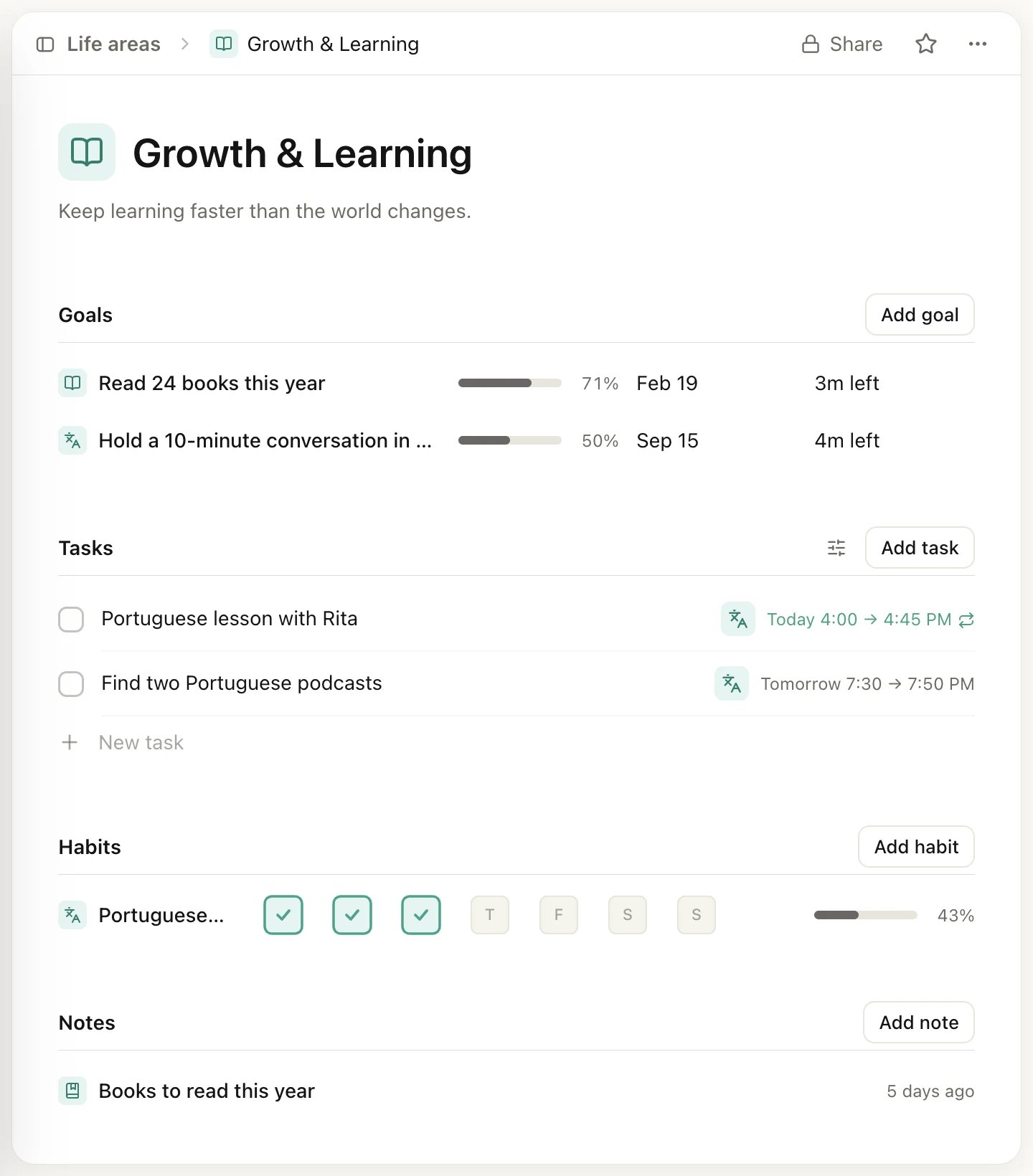
A life area's page
How the pieces link up
Each goal, project, task, habit and note links up to one place at most. That link decides which pages it shows up on.- A goal belongs to one life area, chosen under Life area at the top of the goal’s page.
- A subgoal sits under one goal. A subgoal can’t have subgoals of its own.
- A project links to one goal or one life area, chosen under Alignment at the top of the project.
- A task links to one project, one goal or one life area, chosen under Alignment when you open the task. A task with no date and no alignment waits in your Inbox.
- A habit and a note each link to one goal or one life area, also through Alignment.
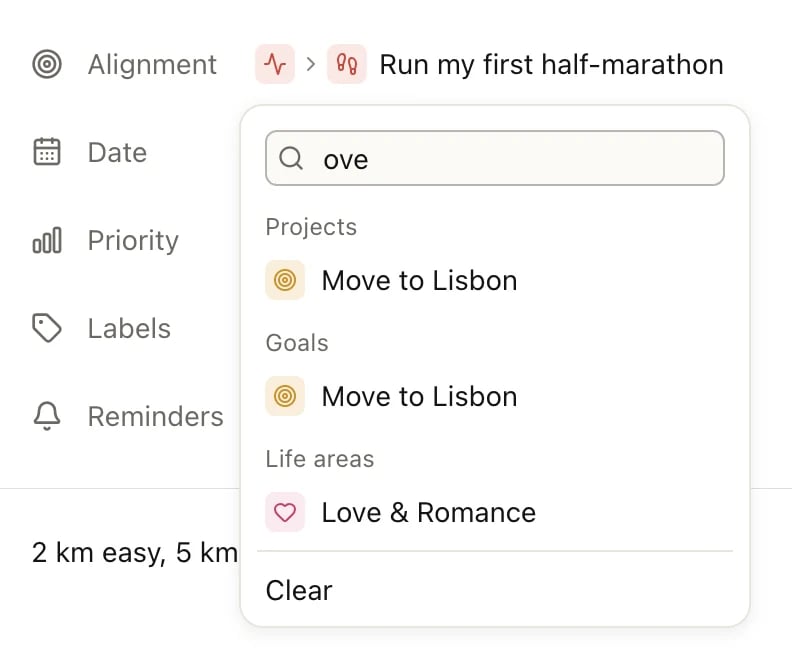
A task's Alignment menu, filtered by typing
Which one do I need?
A goal or a project?
Use a goal for the result you want and a project for the work it takes. A goal has a deadline, subgoals and a progress bar you can measure in tasks, subgoals or your own numbers. A project holds a list of tasks with sections, milestones and a notes area. A project doesn’t need a goal. Moving to a new apartment is a project with a clear end, and its task list is all the measuring it needs. Link it straight to the Home & Environment area. If the result itself matters to you (“Settled in a new city by spring”), make that the goal and link the project to it.A repeating task or a habit?
Use a habit when you want to see whether you keep it up: habits have streaks, a completion rate and perfect weeks, and each day can be done, skipped or failed. Use a repeating task for things that just need doing on a schedule, like paying rent or watering the plants. A repeating task shows up in Today when it’s due, and once you check it off, the next date comes up. See Repeating tasks and Habits.A note or a task description?
Write in a task’s description when the text is only about that task: an address, a phone number, a short checklist. Write a note when it stands on its own and you’ll come back to it, like a training plan, a reading list or meeting notes. Notes live under Notes in the sidebar and can link to a goal or a life area. See Notes.Heym has no subtasks. To break a task into steps, add a checklist to its description.
How progress adds up
A goal’s Progress setting decides what fills its bar:
A few things don’t count toward a goal:
- Tasks in a project. A project has its own progress bar: the share of its tasks that are done. The goal’s page lists the project with that bar, but the project’s tasks don’t move the goal’s own percentage.
- Habits. A habit linked to a goal shows on the goal’s page, but checking it off doesn’t change the goal’s progress.
- Tasks, when the goal uses Manual. Only the numbers you log move the bar.
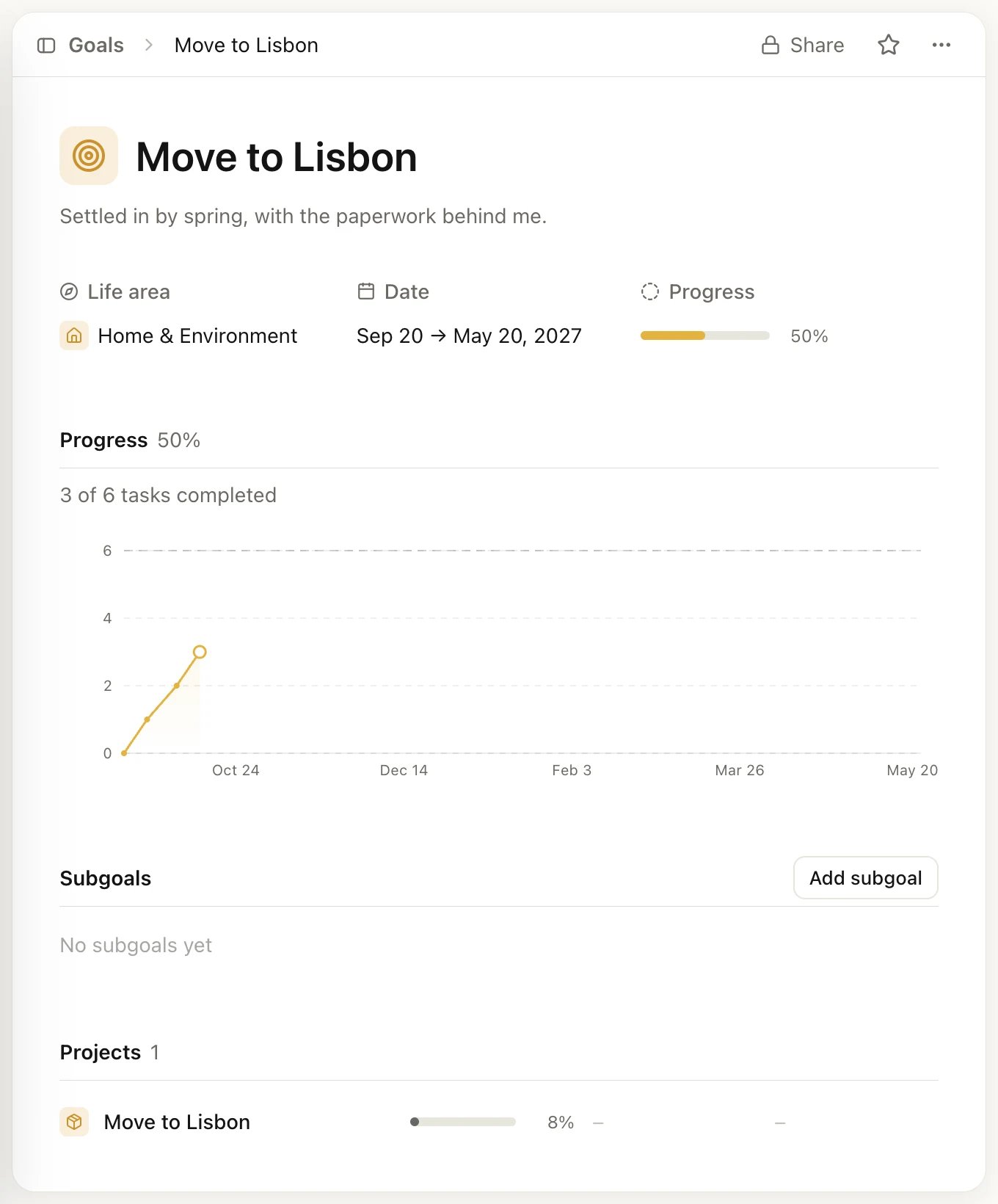
The goal counts its own 6 tasks. The project's tasks count only toward the project's 8%.
Example: training for a half-marathon
Lori wants to run her first half-marathon. Here’s how she set it up in the Sport & Health area:- Goal: Run my first half-marathon, with a start date and a deadline. Its progress is Manual in km, with a target of 300 km. She clicks Update after a week of runs and adds the distance.
- Subgoals: Run 10 km without stopping, and Finish a 16 km long run. Each counts its own tasks.
- Tasks: the long runs (12 km, 14 km, 16 km) are linked to the second subgoal, so it fills up as she checks them off. Tasks like Buy new running shoes link to the main goal, so they show on its page.
- Notes: Training plan, weeks 1 to 12, and Race day checklist, both linked to the goal.
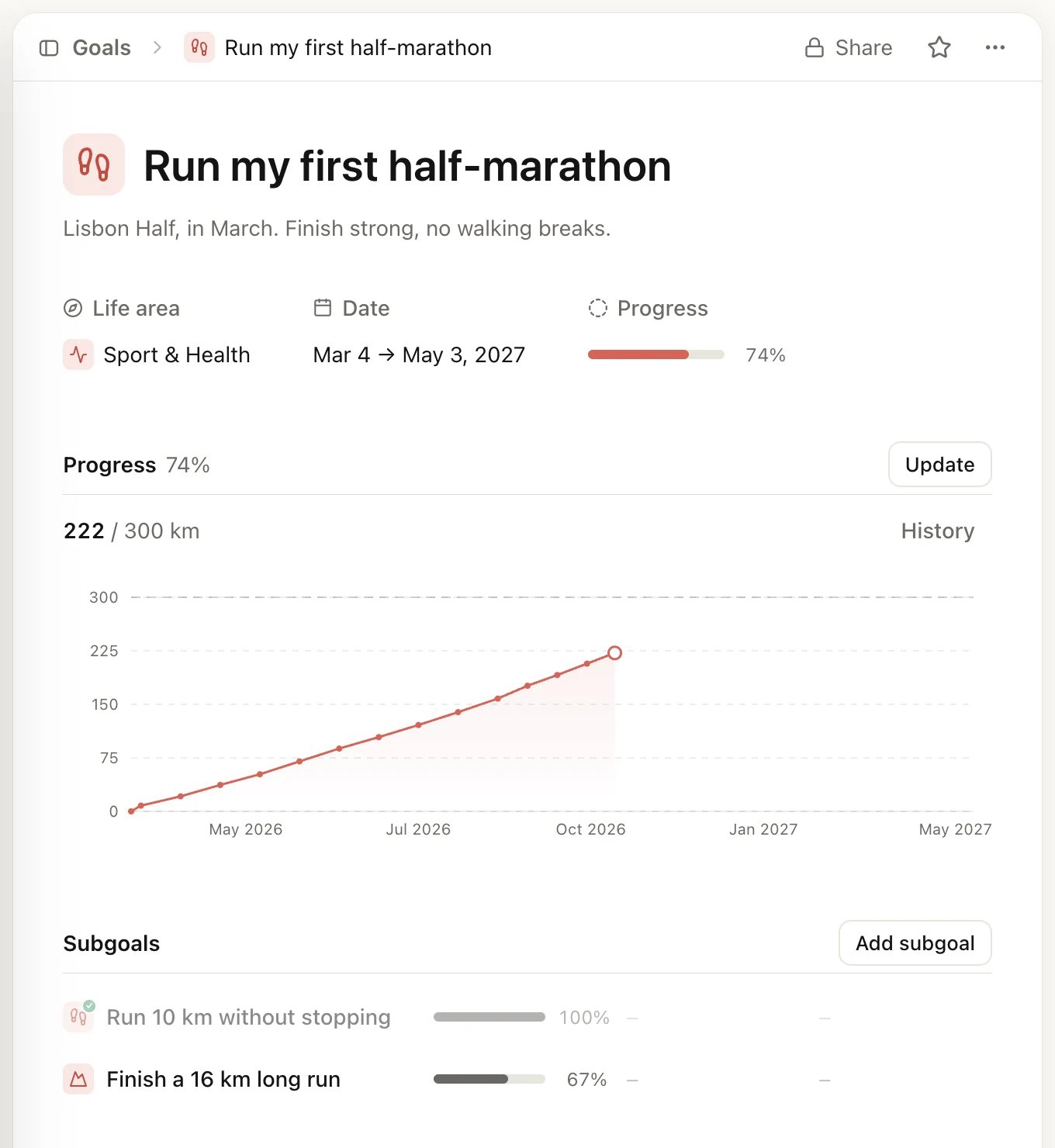
Kilometers logged by hand, with two subgoals below
Example: moving to a new apartment
Moving has a clear end, so it works as a project without a goal:- Project: Move to a new apartment, linked straight to the Home & Environment area. It shows under Projects in the sidebar, not on the area’s page.
- Sections: Paperwork, Apartment and Moving day, so the task list reads in order.
- Milestone: Keys in hand, with its date.
- Tasks: Get quotes from three movers, Give notice on the current lease, Find a new home for the plants. The project’s progress bar fills as they get done.
Start small
You don’t need all seven blocks on day one. One life area, one goal and one habit is enough to start:- Open the area that matters most right now.
- Add one goal to it, and a few tasks linked to that goal.
- Add one habit that helps, and check it off each day.
Limits
On the Free plan you can have 3 goals (subgoals count toward them), 3 projects, 3 habits, 20 notes and 9 life areas. Tasks and labels are unlimited. Pro removes the limits. See Free, Pro and Lifetime.Related
Set up Heym
Sign in, go through setup and find your way around.
Goals
Dates, subgoals and the three ways to track progress.
Projects
Sections, milestones and the list or board layout.
Life areas
Rename, recolor and arrange your areas.