

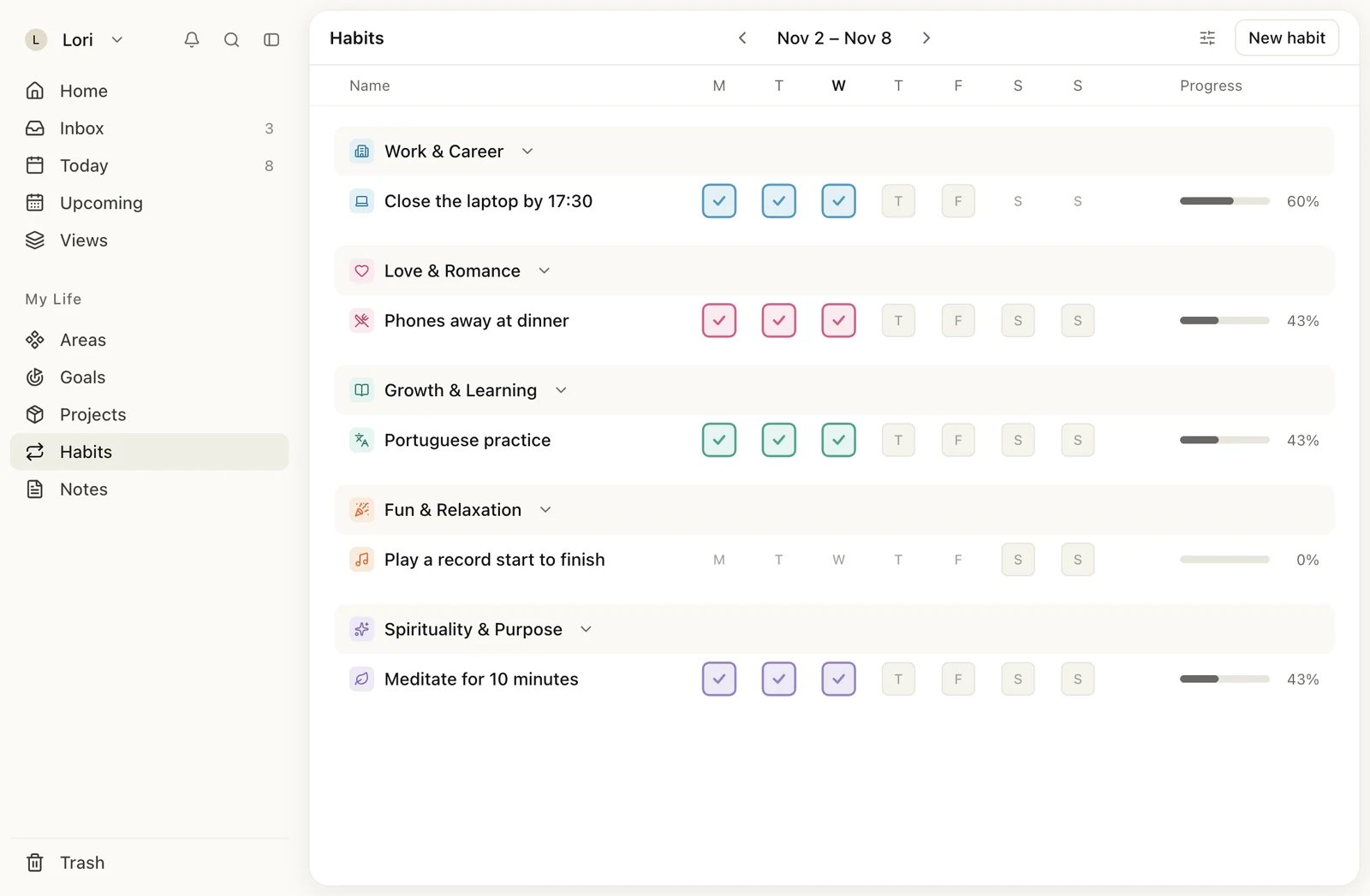
The Habits page shows one week at a time
Create a habit
1
Open Habits
Click Habits under My Life in the sidebar, or press G then H.
2
Click New habit
Click New habit at the top right. The new habit opens in a window.
3
Name it
Type a name in place of New habit. To add detail, point at the space above the name and click Add description. Click the icon to change it or its color. In the color list, turn on Inherit color to use the color of the goal or life area the habit is aligned to.
4
Link it to what it serves
On the right, click Alignment and choose a goal or a life area.
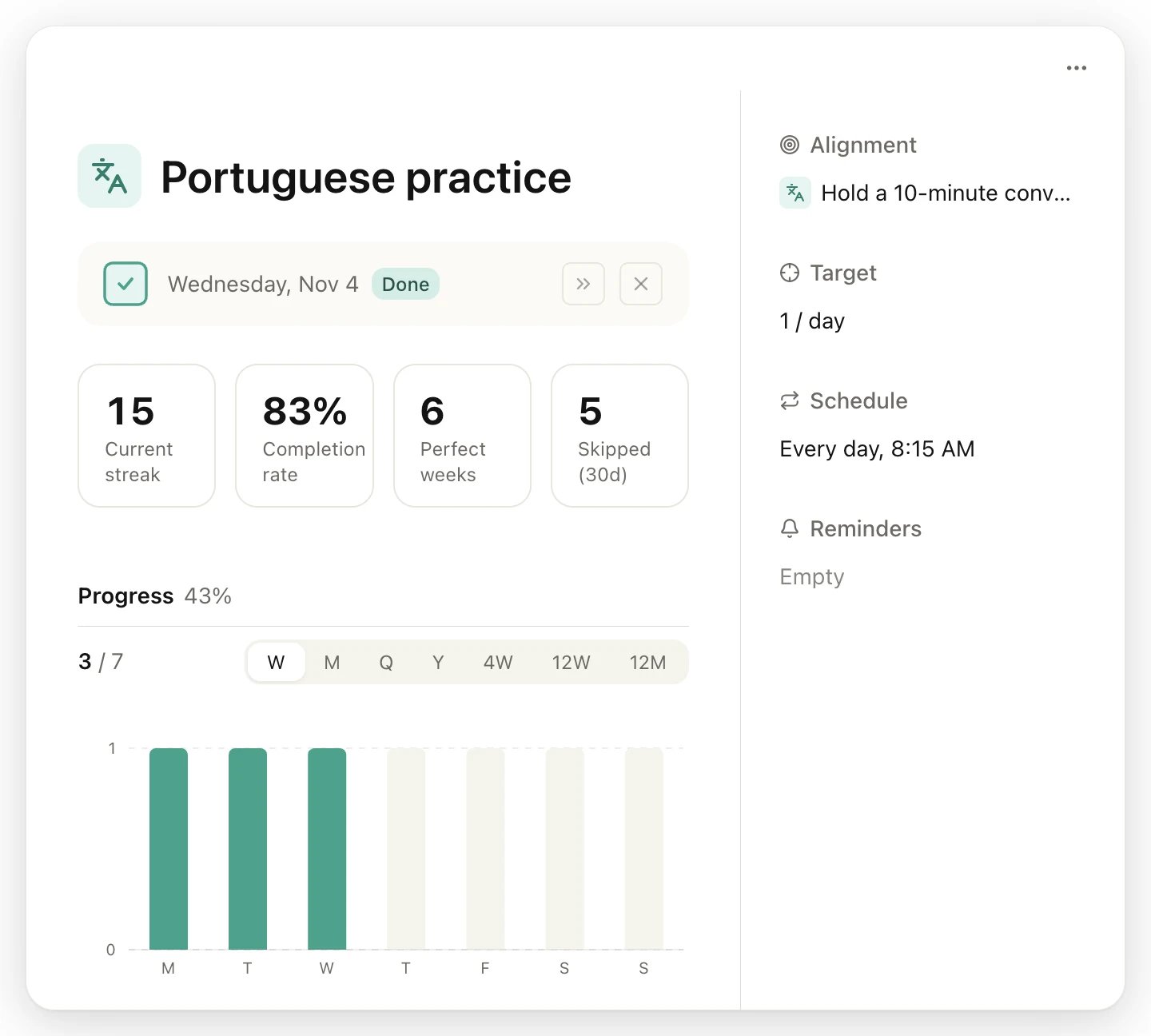
A habit's window: today's check-in, stats and history on the left, settings on the right
Choose how much counts
Click Target in the habit’s window to set what a successful day, week, month or year looks like.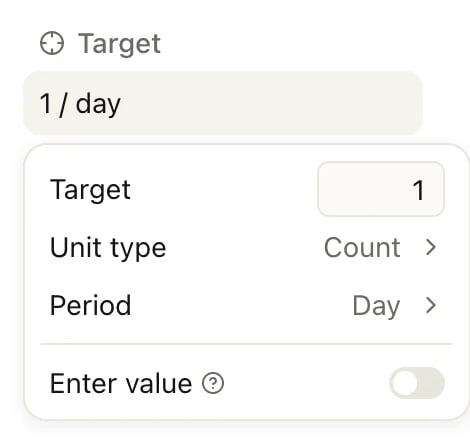
A few times a week, month or year
For “gym 3 times a week”, set Target to 3 and Period to Week. The habit then counts any 3 days in the week, and it reads 3× / week. When you switch a Count habit from Day to a longer period, Max per day starts at 1×, so each check-in has to be on a different day. Choose a higher number, or No limit, if one day may count more than once.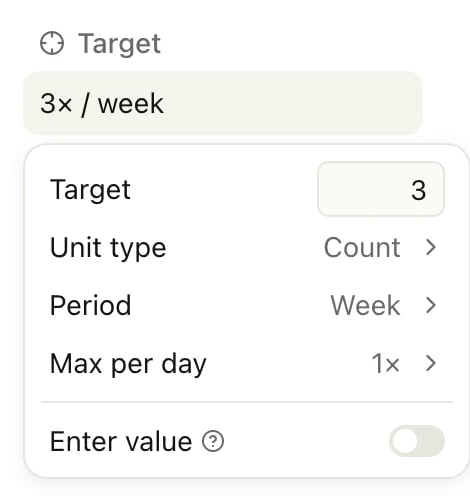
3 times a week: Max per day 1× means three different days
Set when it happens
Click Schedule to choose the habit’s days and time.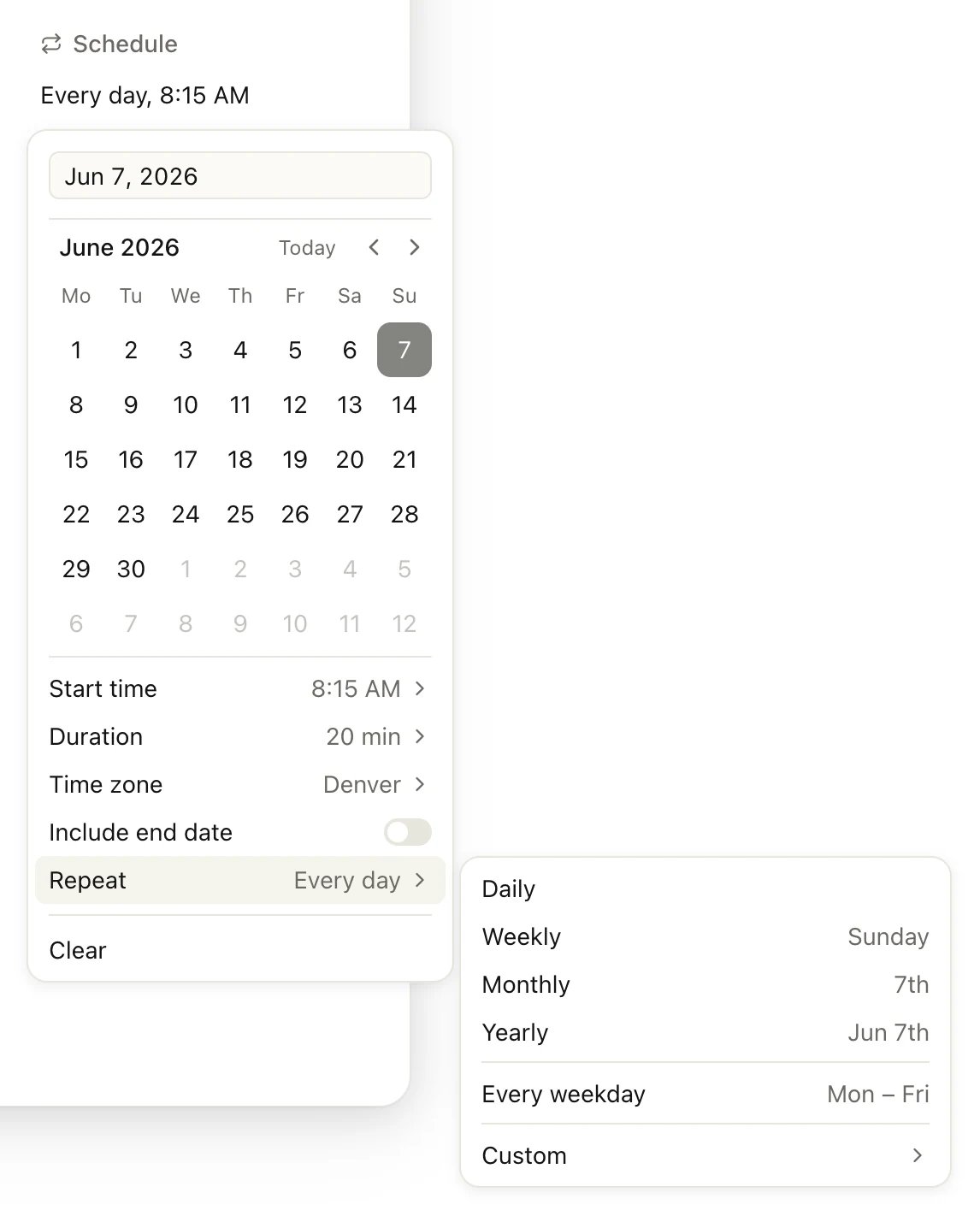
The Schedule menu, with the Repeat options open
- The date and calendar: the day the habit starts. Include end date adds a last day.
- Start time and Duration, such as 8:15 AM for 20 minutes. A habit with a time sits at that time on the calendar.
- Time zone: keep a city, or choose Floating to follow your local time.
- Repeat: Daily, Weekly, Monthly, Yearly, Every weekday or Custom. Weekly, Monthly and Yearly follow the start date’s weekday or date.
Repeat appears only when the target’s period is Day. A habit with a weekly, monthly or yearly target can be done on any day of the period, so it has no repeat rule.
Check off a habit
On the Habits page, each habit has a square for every day it’s scheduled. Days it isn’t scheduled show just the letter and can’t be checked off. Click a day’s square:- Yes or no habits (the default 1 / day): one click marks the day done. Click again to undo it.
- Count habits: each click adds 1. On a weekly, monthly or yearly habit, once a day reaches its Max per day, the next click clears it. To clear a day’s count, right-click the square and choose Reset progress.
- Enter value turned on: a small box asks for the amount.
Press G then H for Habits, then click today's square
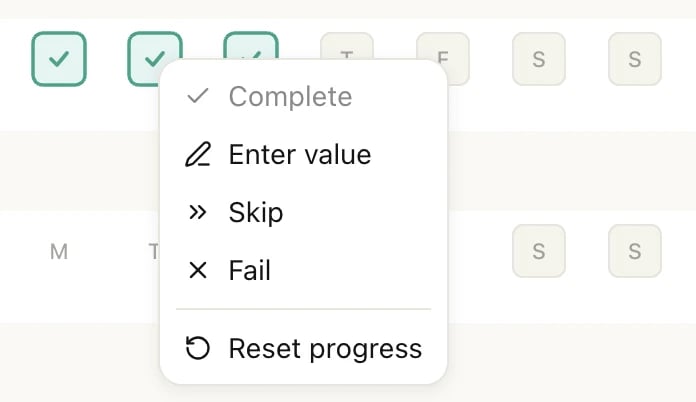
Done, skipped or failed
Today doesn’t break a streak while it’s still open. Use Skip for a day that shouldn’t count, such as a sick day, and Fail to record a miss. For weekly, monthly and yearly targets, only done check-ins add up; a skipped or failed day adds nothing.
Read your streak and stats
The four numbers at the top of a habit’s window:
Below them, Progress charts your check-ins. W, M, Q and Y show this week, month, quarter or year; 4W, 12W and 12M show the last 4 or 12 weeks or 12 months. Every range but W adds a Calendar of each month, where you can check off past days too.
Get reminders
Click Reminders in the habit’s window and choose when you want a nudge, such as At start or On the day at a time. A habit reminds you on each scheduled day until you’ve done it that day, or, with a target such as 3 times a week, every day until you reach the target. It stays quiet on days you skip or fail. How reminders arrive is on Reminders.Group and reorder habits
Click View settings (the sliders button next to New habit) to change the list:- Group: None, Life area, Goal or Time of day. Habits are grouped by life area until you change it.
- Show archived: adds an Archived group at the bottom.
Archive or delete a habit
To pause a habit and keep its history, click its handle and choose Archive, or choose Archive in the ⋯ menu of its window. An archived habit leaves your list and becomes read-only. To bring it back, turn on Show archived in View settings, then choose Restore from its handle or its window. To delete a habit, click its handle or the ⋯ menu in its window, choose Delete, then confirm with Delete.Good to know
- Habits don’t move goal progress. Linking a habit to a goal shows it on the goal’s page, but the goal’s progress comes from its tasks, subgoals or the numbers you log. See Goals.
- Habits aren’t shared. When you share a goal or life area, the habits in it stay private to you. See Share with others.
- Repeating task or habit? A repeating task is a to-do that comes back. A habit is a routine you track over time. See How Heym fits together.
Limits
The Free plan includes up to 3 habits, and archived habits count toward them. Pro has no limit. If you have more habits than your plan allows, for example after Pro ends, the extra habits become read-only and a banner in their window says so. Nothing is deleted. See Free, Pro and Lifetime.Related
Reminders
Get a nudge when a habit is due.
Calendar
See habits on their days next to your tasks.
Goals
Link habits to the goals they serve.
Repeating tasks
For to-dos that come back on a schedule.