

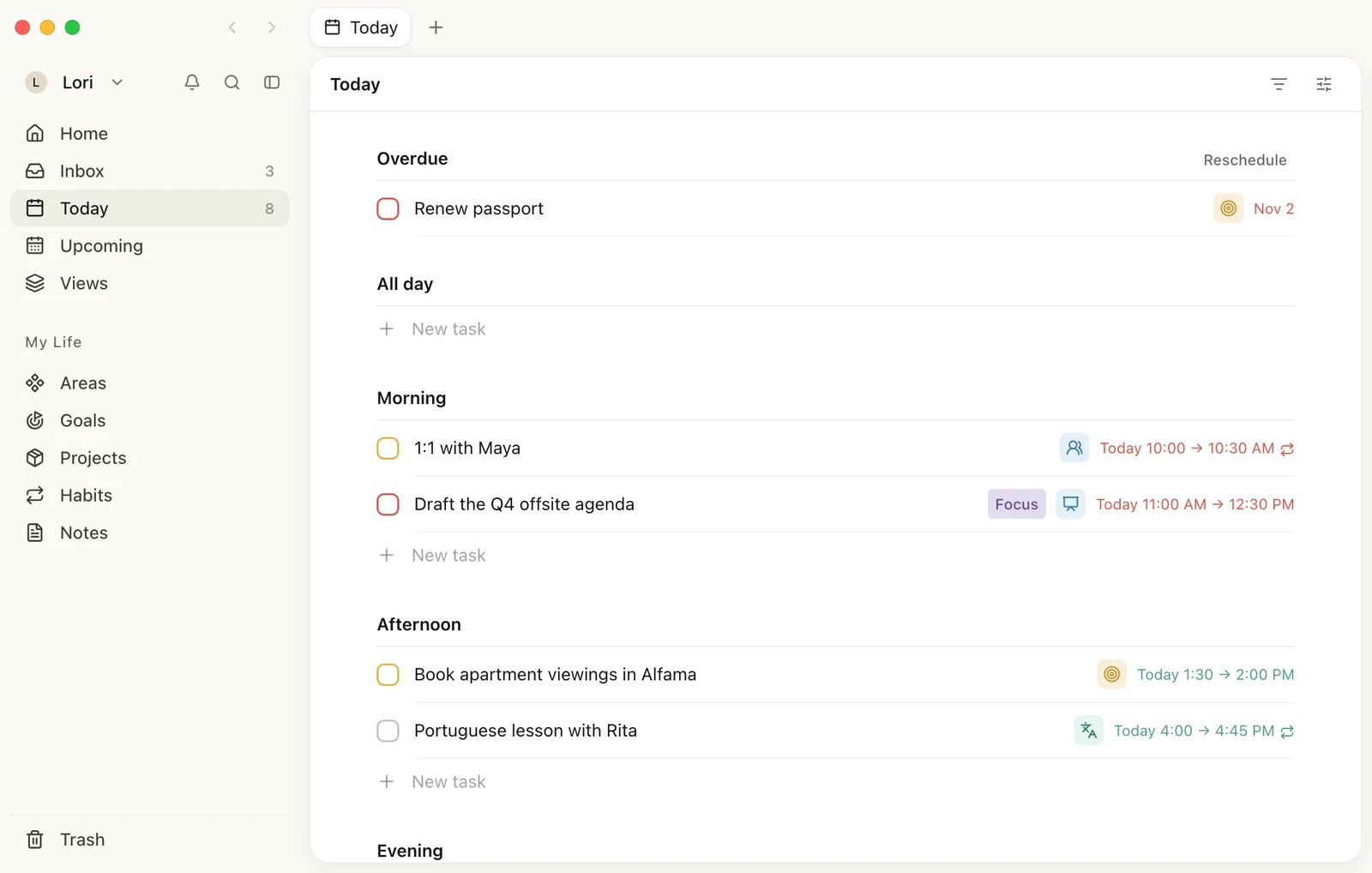
Sign in
The first time you open the app, it shows Sign in to Heym.- Continue with Google or Continue with Apple opens your browser. Sign in there. When the browser shows Opening Heym…, it hands you back to the app. If the app doesn’t come to the front, click Open Heym. You can then close the browser tab.
- To sign in with email, type your email address and click Continue with Email. Heym emails you a one-time code. Type the 6-digit code into the app and click Sign in. The link in the same email works too. If no email arrives, click Resend code (it’s available again after 60 seconds), or click Back to fix the address.
Work in tabs
Tabs let you keep several pages open at once, like Today next to a goal you’re working on. They sit in the strip at the top of the window. Each tab keeps its own back and forward history.
Three tabs: Today, Goals and Habits
- Open a tab: click + at the end of the strip or press ⌘T. A new tab opens on your start page, or on Today if your start page is Last visited. To choose that page, see Customize Heym.
- Open a link in a new tab: hold ⌘ and click it. The tab opens in the background.
- Switch tabs: click one, or use the shortcuts below.
- Move a tab: drag it left or right.
- Close a tab: point at it and click ×, click it with the middle mouse button, or press ⌘W. When only one tab is left, ⌘W closes the window.
- Go back or forward: click the arrows left of the tabs. If your Mac’s trackpad gesture for swiping between pages is on, swiping left or right works too.
Every other shortcut is on Keyboard shortcuts.
Add a task with ⌘N
Press ⌘N, or choose File → New Task, to open the new task window from any page. It works while Heym is the app in front. There’s no shortcut that adds a task while you’re in another app.The menu bar icon and Launch at Login
Heym puts an icon in the menu bar at the top of your screen. Click it for three choices:
Closing the window with the red button or ⇧⌘W doesn’t quit Heym. It keeps running in the Dock and the menu bar, but reminders don’t appear until you open a window again. See How reminders reach you.
The Dock icon shows the number of open tasks due today, the same count you see next to Today in the sidebar. Overdue tasks aren’t counted. Turning off Show task count in Settings → Sidebar doesn’t remove the number from the Dock.
Updates
Heym looks for updates when it starts, every hour while it runs, when you come back to it and when your Mac wakes from sleep. It downloads new versions by itself.- While an update downloads, Downloading update… shows at the bottom of the sidebar.
- When it’s ready, that spot shows Relaunch to update with the new version number. Click it to restart Heym on the new version now.
- If you don’t click it, the update installs the next time you quit Heym.
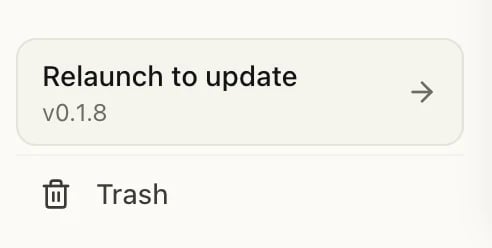
An update is ready to install
When Heym shows “You’re offline”
If the app can’t reach Heym’s servers when it opens its window, it shows You’re offline. Check your internet connection, then click Try again.Open Heym from a heym:// link
Links that start withheym:// open the Mac app on that page. For example, heym://today opens Today, heym://inbox opens Inbox and heym://goals opens your goals. Use one in any app on your Mac that opens links to jump straight to that page in Heym. Heym’s own notes only turn web addresses (starting with http or https) into links, so a heym:// link in a note can’t be clicked.
If Heym isn’t running, the link starts it. If you’re logged out, Heym asks you to sign in first.
Good to know
- Zoom and window size: use the View menu to zoom in or out. Heym remembers the zoom level and where you left the window.
- Copy and paste: the Edit menu has the usual commands. Outside a text box, ⌘Z works like the Undo button in the message Heym shows after an action, such as completing a task. See Undo and Trash.
- Links to other sites (for example billing pages or files you’ve attached) open in your browser, not in the Heym window.
- Right-click menus: right-click a misspelled word for spelling suggestions and Add to Dictionary, a link for Open Link in Browser and Copy Link, or a text box for undo, redo, cut, copy and paste.
Related
Your devices
Download the Mac app and see what each platform can do.
Keyboard shortcuts
Every shortcut, including the Mac app’s.
Customize Heym
Choose your start page, sidebar and theme.
Can't sign in
What to try when a code or link doesn’t work.