

Create your account
1
Open the sign-up page
Go to heym.app/signup. You’ll see Create your account.
2
Pick how you sign in
Click Continue with Google or Continue with Apple. Or type your email address and click Continue with email.
3
Open the link in your email (email only)
Heym emails you a 6-digit code and a sign-in link. In the browser, click the link (the code is for the Mac app). The link expires in 60 minutes. If the email doesn’t arrive, click Resend email, or click Use a different email to fix a typo.
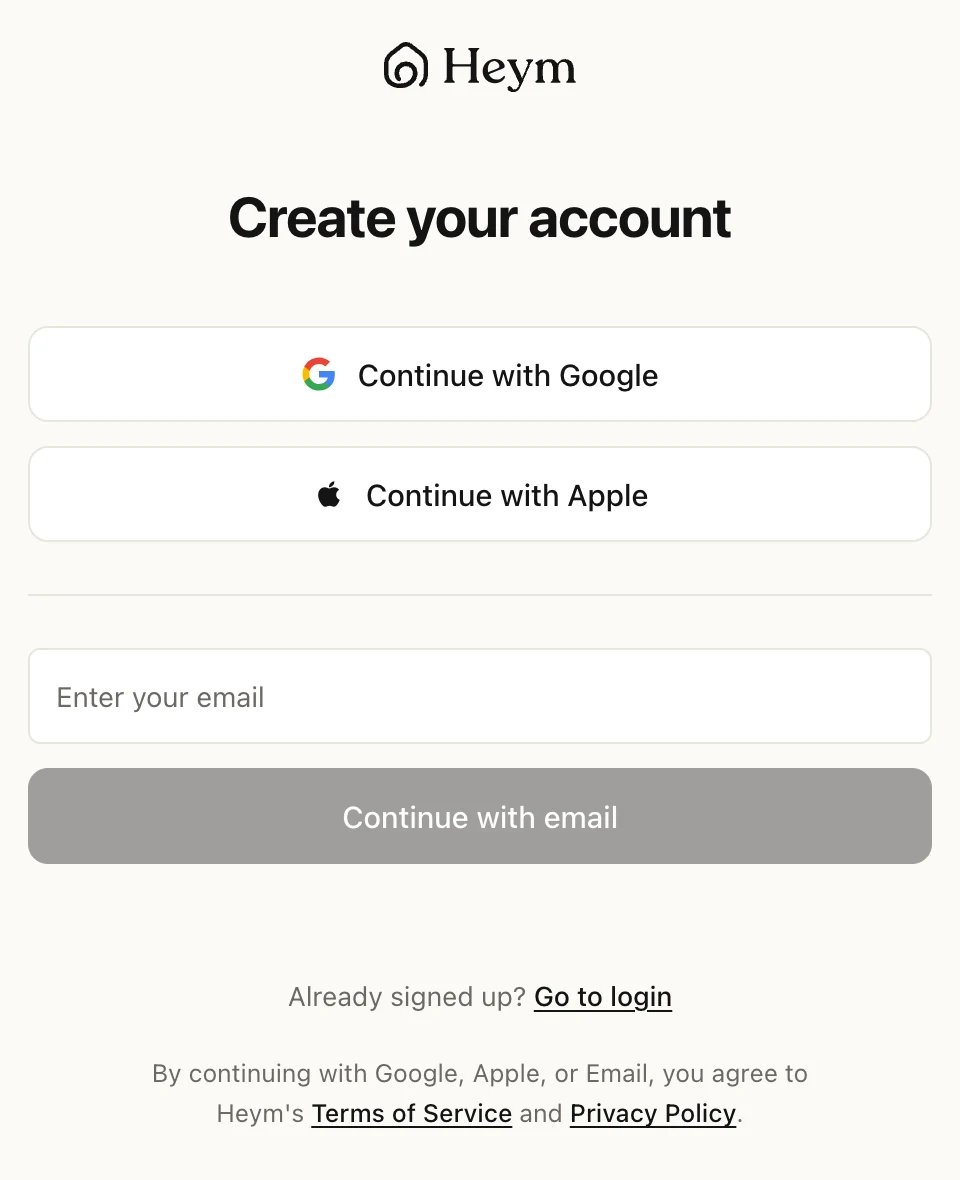
The sign-up page
The setup, step by step
The first time you sign in, Heym asks a few questions. It takes about two minutes.- Welcome to Heym. A short overview. Click Let’s go.
- What should we call you? Your first name, filled in already if you signed in with Google or Apple. Click Add a photo to add a picture (up to 5 MB).
- What life areas do you want to focus on? All nine areas are selected at first. Turn off the ones that don’t matter right now. Your choice decides which suggestions and which life areas the next steps offer. All nine areas stay in your account either way.
- What are your two most important goals right now? Type a goal or click a suggestion, and choose the life area it belongs to.
- Build your first two habits. Name each habit, set how often you want to do it, and link it to a goal or life area.
- Add three tasks you want to get done today. They’re due today, so you’ll find them in Today.
- What is your current work situation? and How did you hear about us? Clicking an answer moves you on.
Your first week
Five things to try, each with the page that explains it:- Get everything out of your head. Press C (when you’re not typing) to create a task. A task with no date and no goal, project or life area goes to your Inbox. See Tasks and Type a task in one line.
- Plan each day in Today. Give tasks a date and a time, and work through Today’s list. See Inbox, Today and Upcoming.
- Get a reminder for the things you can’t miss. See Reminders.
- Check off your habits every day and watch the streak grow. See Habits.
- Look back at the end of the week. Open your goals to see their progress, then plan the next days in Upcoming. See Run a weekly review.
Find your way around
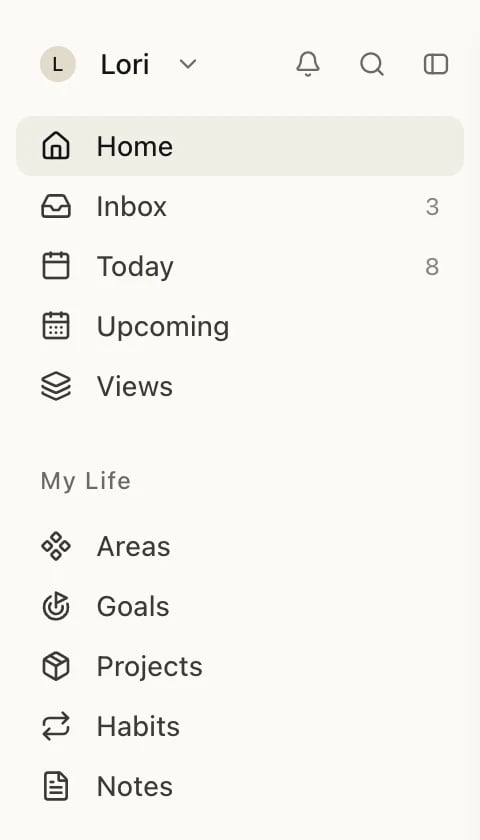
The sidebar
- Home, Inbox, Today, Upcoming and Views are your daily lists. Views holds lists such as All tasks and Completed.
- My Life holds Areas, Goals, Projects, Habits and Notes.
- Trash, at the bottom, holds deleted tasks and notes. See Undo and Trash.
- Your name at the top opens a menu with Settings, Keyboard shortcuts, Send feedback, What’s new and Log out. On the Free plan it also offers Try Pro for free (or Upgrade to Pro if you’ve had a trial).
Search for anything
Click the search icon at the top of the sidebar, or press ⌘K (Ctrl+K on Windows). Start typing, and Quick results lists what matches.Press ⌘K and type: tasks, goals and notes that match show up right away
Completed tasks show the day you completed them. Click a result to open it, or click Create task “…” below the results to add what you typed as a new task.
Under Go to, the menu also lists Heym’s pages, such as Inbox, Pomodoro and Trash, each with its keyboard shortcut. Type a page’s name to find it, then click it.
Items in Trash don’t show up in search. To find a deleted task or note, open Trash.
Related
How Heym works
What areas, goals, projects, tasks, habits and notes are for.
Your devices
Use Heym in your browser or download the Mac app.
Import tasks
Bring your tasks, projects and labels along.
Can't sign in
What to do when the email link or code doesn’t work.