

Start your free trial
1
Open the upgrade window
Click your name at the top of the sidebar, then click Try Pro for free. If you’ve had a trial before, it says Upgrade to Pro.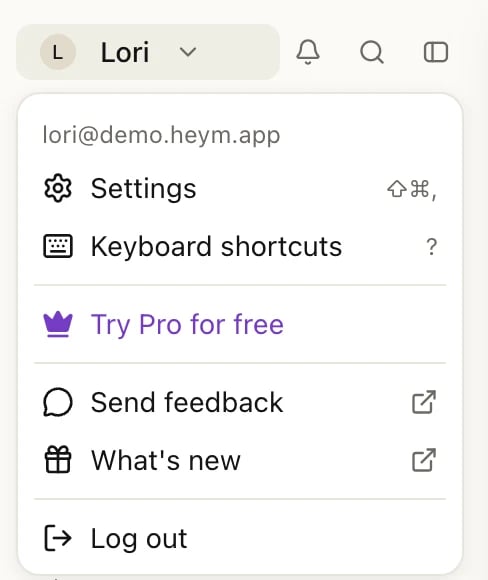
2
Pick a billing cycle
Yearly is selected. Click Lifetime to pay once, or click More options to see Monthly.
3
Go to checkout
Click Start 7-day free trial. If no trial applies (you’ve had one, or you picked Lifetime), the button says Continue to checkout. Stripe’s checkout page opens, where you enter your payment details.
4
Come back to Heym
After checkout, Heym opens again on Settings → Subscription, which shows Heym Pro once Stripe has confirmed your checkout. If you leave checkout without finishing, you land back on the same screen and nothing changes.
How the free trial works
- The trial lasts 7 days and comes with your first monthly or yearly subscription. Lifetime has no trial.
- Each account gets one trial. Once you’ve had it, the upgrade window offers Continue to checkout instead.
- You enter a payment method at checkout, but nothing is charged that day. The upgrade window shows Due today €0 and the date and amount of your first charge.
- While the trial runs, a card in the sidebar counts down the days (“5 days left in your free trial.”), and Settings → Subscription shows the date it ends.
- Cancel before the trial ends and you aren’t charged. If you don’t cancel, the first payment is taken when the trial ends and Pro continues.
Manage your subscription
- Click your name at the top of the sidebar, then Settings (or press ⇧⌘,).
- Click Subscription.
- Click Manage subscription. Stripe’s billing page opens (in your web browser if you use the Mac app).
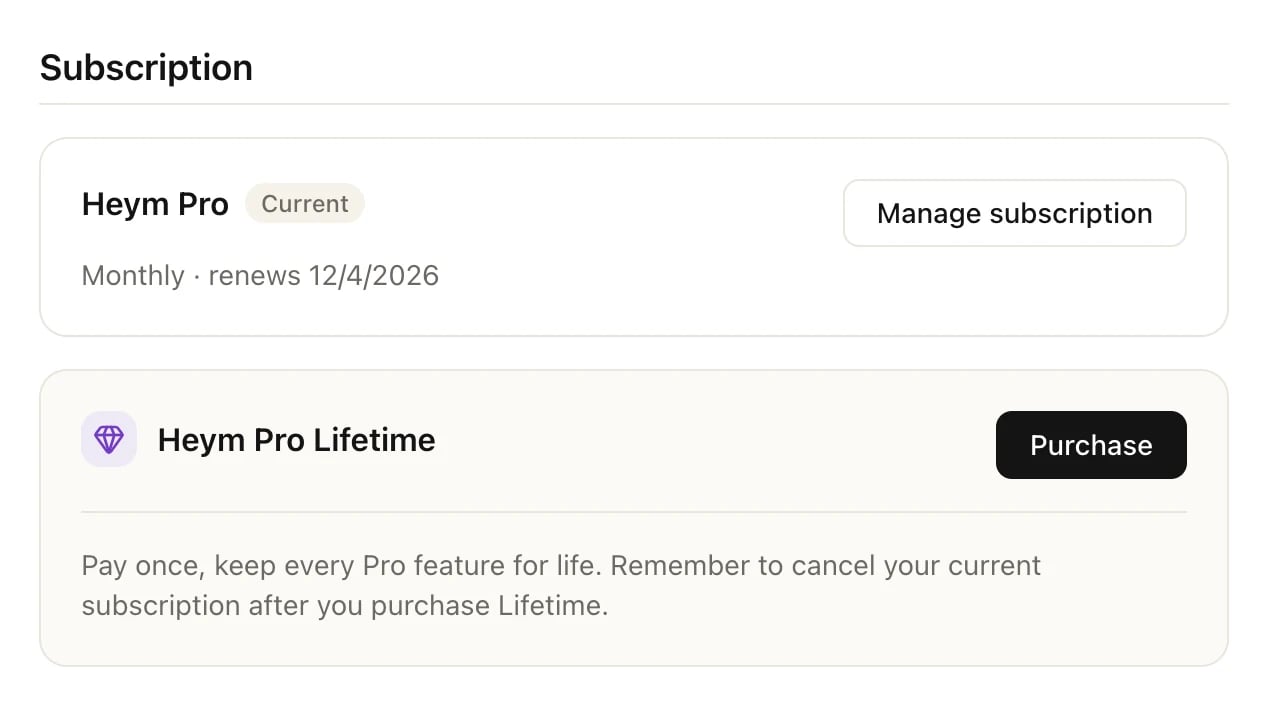
Settings → Subscription for a monthly subscriber
Cancel Pro
Open Manage subscription as above and cancel on Stripe’s billing page. You keep Pro until the end of the month or year you’ve paid for. If you cancel during the free trial, you keep Pro until the trial ends and you aren’t charged.After you cancel, Settings → Subscription still says Monthly · renews or Yearly · renews with a date. That date is when Pro ends, and you won’t be charged again. To check that the cancellation went through, open Manage subscription again.
Get Pro back after canceling
- Before Pro ends: you’re still on Pro, so Heym doesn’t offer a new subscription. Open Manage subscription and renew your subscription on Stripe’s billing page.
- After Pro has ended: click your name at the top of the sidebar, then Upgrade to Pro. Pick a billing cycle and click Continue to checkout. There’s no second free trial.
Switch to Lifetime
If you pay monthly or yearly (or you’re in your free trial), Settings → Subscription shows a Heym Pro Lifetime box.- Click Purchase. Stripe’s checkout opens for the one-time payment of €119.
- After paying, Settings → Subscription shows Lifetime · never expires.
- Click Manage subscription and cancel your monthly or yearly subscription.
If a payment fails
If a renewal payment doesn’t go through, Stripe tries again over the following days, and you keep Pro while it does. Heym doesn’t show a warning in the app, so if a charge looks wrong, check your payment method under Manage subscription and update it so the next attempt succeeds. If no attempt succeeds, Pro ends and your account moves to Free, the same as canceling.One subscription per account
Pro is tied to your Heym account, not to a device or browser. Sign in with the same account on the web and in the Mac app and you have Pro in both. Once you’re on Pro, the upgrade options disappear from the menu under your name, so you can’t subscribe twice by accident. If you see Free where you expect Pro, check that you’re signed in with the account you paid with: its email is at the top of the menu under your name.Related
Free, Pro and Lifetime
Limits, prices and what Pro adds.
Invoices and refunds
Find your invoices and ask for a refund.
Your account
Name, photo, language, two-factor authentication and deleting your account.
Contact support
How to reach us and what to include.