

Show Today or Upcoming as a calendar
- Open Today or Upcoming in the sidebar.
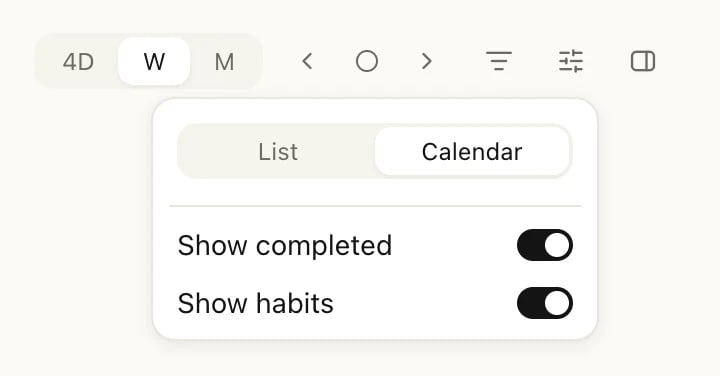
- Click View settings (the sliders button at the top right) and choose Calendar.
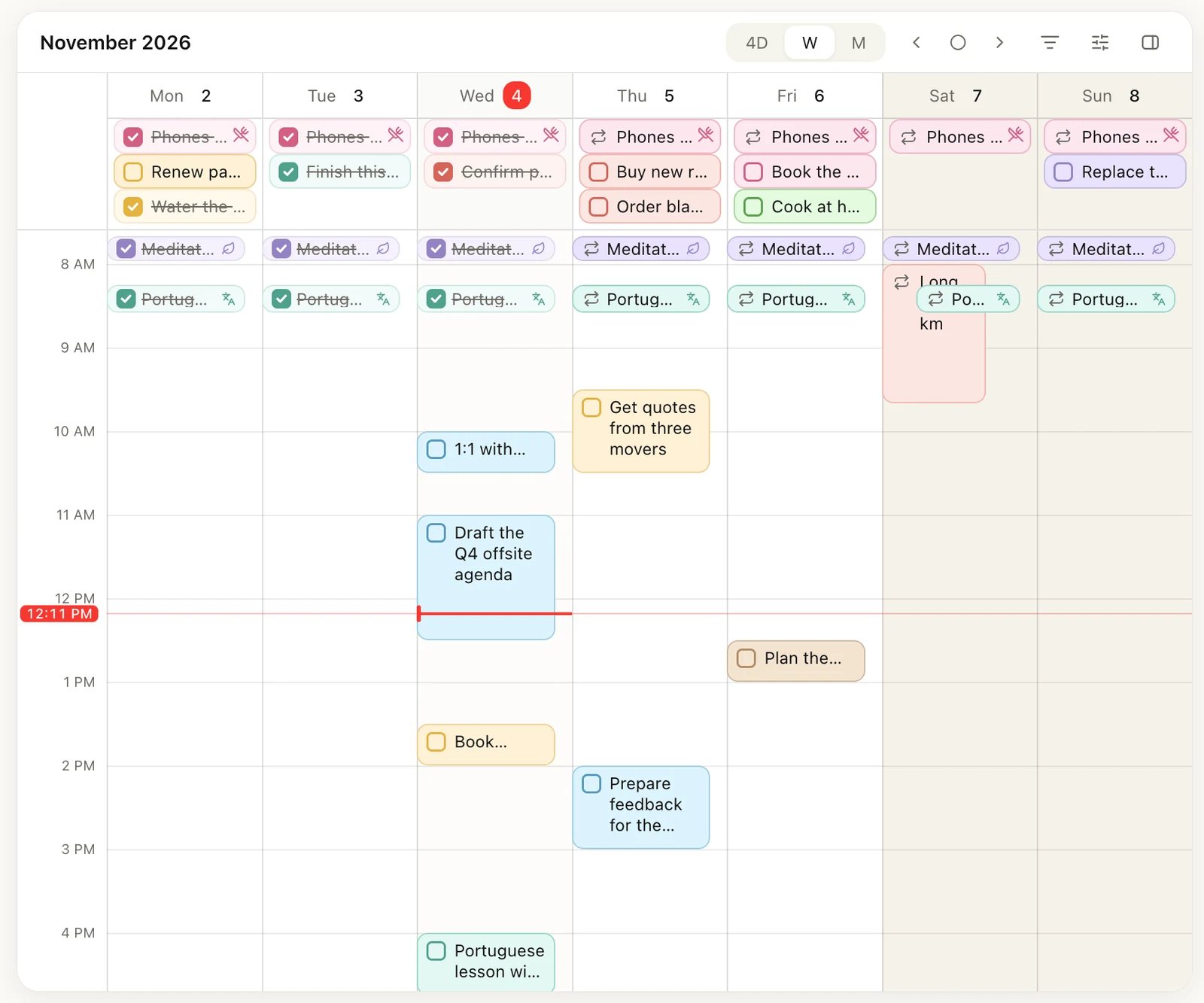
Upcoming as a week
- Tasks with a start time are blocks at their time, as tall as their duration.
- Tasks without a start time sit in the row under each date. When a day has more than fits, click +2 more (the number says how many are hidden) to see the rest.
- The week starts on the day you set in Settings. See Customize Heym.
- The filter button at the top right narrows the calendar the same way it narrows the list. See Views and filters.
Create a task on the calendar
- Double-click an empty time to add a 30-minute task there. Type its name and press Enter.
- Click and drag down over the hours to add a task exactly that long.
- Double-click the row under a date to add a task for that day without a time.
Move or resize a task
- Move: drag the task to another time or day. Times snap to 15 minutes. When the day changes, a Date updated to message appears with Undo.
- Remove the time: drag the task into the row under a date. It keeps the day and loses its time.
- Resize: drag the bottom edge of the task up or down to change its duration in 15-minute steps. Make it shorter than 15 minutes and the task keeps its start time but has no duration.
- Open it: click the task to see and change its details on the right.
Plan from the All tasks list
The All tasks list opens beside the calendar and holds every open task, with or without a date. Use it to give your Inbox tasks a time, or to see what’s left for a goal. If you’ve set a filter, the list shows only the tasks that match it.1
Open the list
Click the button at the right end of the header, the one with a sidebar icon (pointing at it shows All tasks).
2
Group it, if you like
To sort the list into groups, click Group: at its top and choose Goal, Label, Life area or Priority.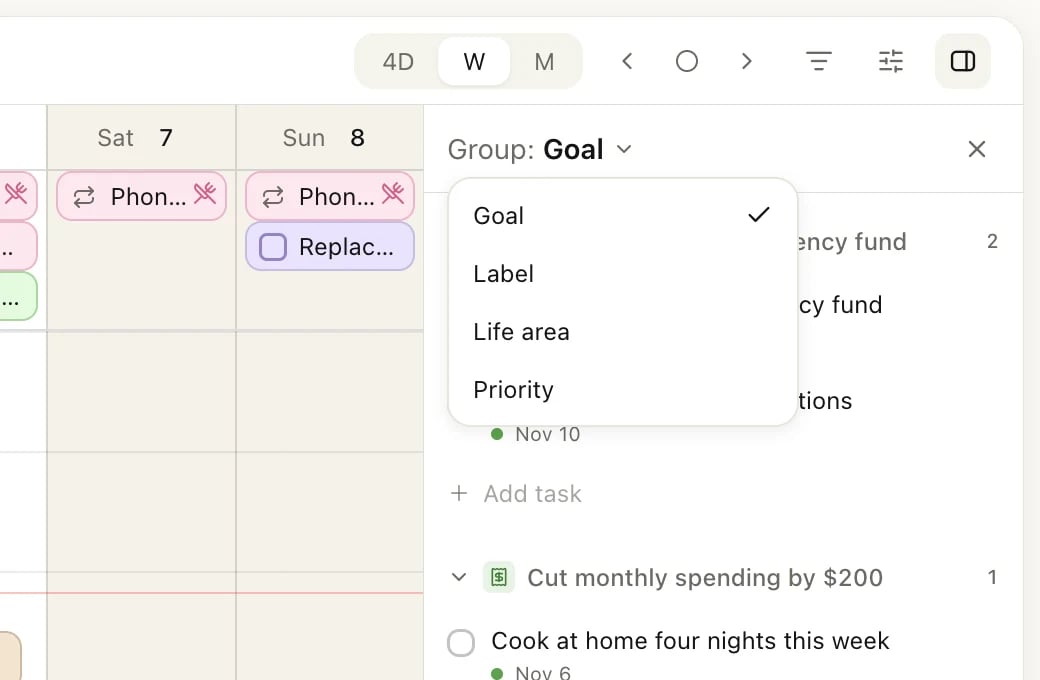
3
Drag a task onto a time
Drag a task from the list onto a time. It gets that date and time.This doesn’t work for a repeating task based on its Scheduled date: dropping one onto the calendar does nothing. To change when it happens, open it and change its date or schedule.
On Today's calendar, open All tasks and drag a task onto 2 PM
Habits on the calendar
Habits appear on the days they’re scheduled: at their time if they have one, otherwise in the row under the date. Check off a habit to mark it done for today or an earlier day. On future days it shows a repeat icon instead of a checkbox. Click it to open the habit, where you can also skip it or mark it failed; a skipped or failed habit no longer shows on that day. You can’t drag habits on the calendar. To change when a habit happens, change its schedule. See Habits. A habit with a target like 3 times a week, and no set days, appears on every day, because any day counts. To hide habits, turn off Show habits in View settings.Google, Outlook and Apple calendars
The calendar shows only your Heym tasks and habits. Events from Google Calendar, Outlook or Apple Calendar don’t appear in Heym, and Heym tasks don’t appear in those apps.Related
Inbox, Today and Upcoming
The list views behind the calendar.
Tasks
Dates, start times, durations and time zones.
Repeating tasks
Move or delete one occurrence or the whole series.
Habits
Schedules, targets and streaks.