

Make a task repeat
1
Open the date picker
Click the task to open it, then click its date next to Date. In the New task window, click the calendar button instead.
2
Pick the first day
Choose the day the task should first come due. The schedule starts there.
3
Choose a schedule
Click Repeat and pick one of the options.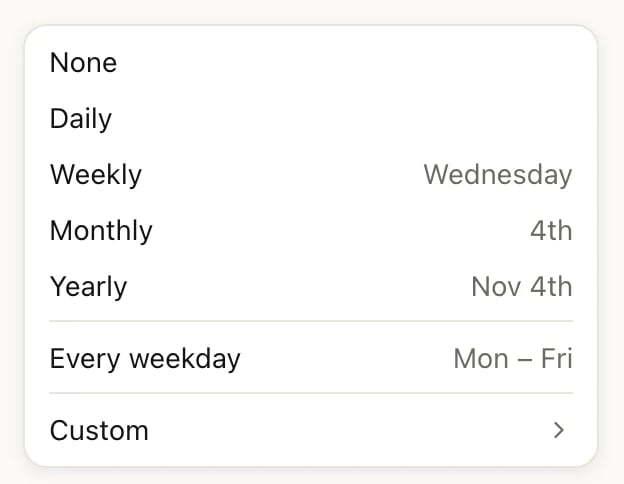
Repeat then shows the schedule, such as Every Wed. In lists, a repeat icon appears next to the task’s date.
Set your own schedule
Click Custom in the Repeat list. At the top, set Every to a number and pick Day, Week, Month or Year: “Every 2 Week” repeats every other week. Choose the options below, then click OK.Every 2 weeks on Monday and Wednesday, set in Custom
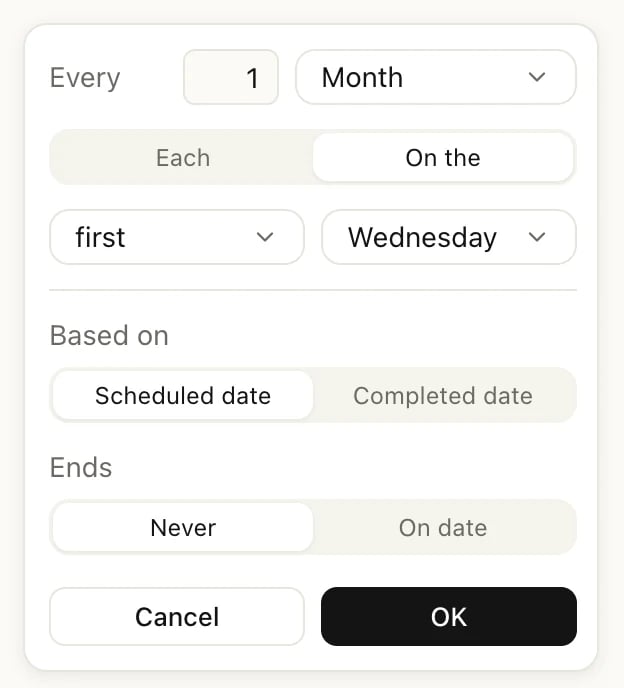
The first Wednesday of every month
- Skip weekends leaves out the dates that fall on a weekend. It doesn’t move them to Monday.
- 29, 30 or 31 only happen in months that have that date. For the end of every month, pick Last day.
- Every 2 (or more) counts from the task’s first date: every other week means the weeks starting with that one.
Based on: scheduled date or completed date
Based on decides where the next date comes from.- Scheduled date (the standard): the task follows the calendar. Every Wednesday stays every Wednesday, whenever you complete it.
- Completed date: the next date is counted from the day you complete it. “Every 3 Day” completed on a Monday comes back on Thursday; completed on Tuesday, on Friday. Use it for things that should wait a while after you’ve done them, like watering plants.
End on a date
Under Ends, choose On date and pick the last day. The task repeats up to and including that day, then stops. Never keeps it going.Complete a repeating task
Click the checkbox as you would for any task. The task leaves the list for today, and the next occurrence shows up on its own day. Task completed appears with Undo. In Upcoming, a repeating task shows on each of its days until the end of this month. Future occurrences have a repeat icon instead of a checkbox: you can’t complete them before their day.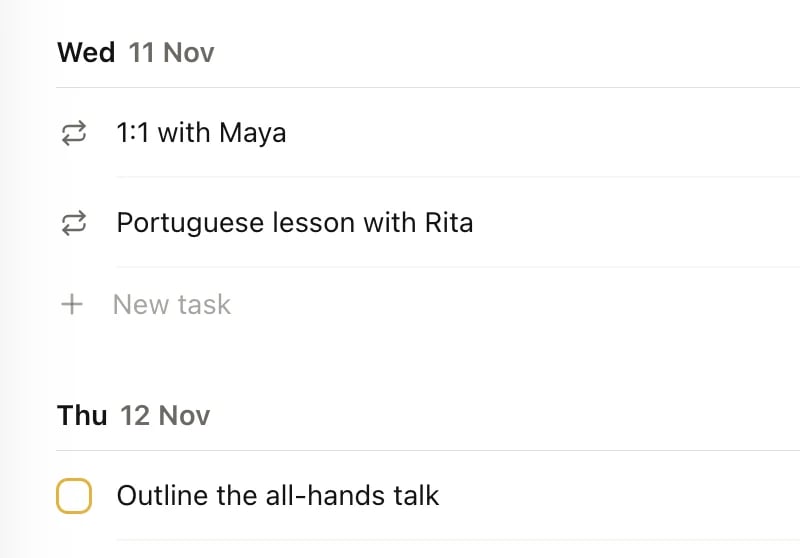
Future occurrences in Upcoming
If you missed one
Heym doesn’t pile up missed occurrences. Your lists show only the oldest one you still owe, in red with its original date, and nothing in between. When you check it off, Heym asks When did you complete “…”? with the task’s name, as it does for any overdue task (see Tasks):
After Today or Pick a date…, the Task completed message has no Undo. Whatever you choose, the other days you missed drop out of your lists. On the calendar they stay as unchecked occurrences, and you can still check them off there.
Change one occurrence or the whole series
To change the whole series, open the task and change its title, time, priority, labels or Repeat. The change applies to every occurrence, and the occurrences you already completed stay completed. Changing only the task’s date moves where the series starts, not the day it repeats on: a task that repeats every Wednesday still comes back on Wednesdays after you set its date to a Friday. To repeat on Fridays instead, set the Friday date, then pick Weekly again under Repeat (or change the day in Custom). To change a single occurrence, switch Today or Upcoming to the calendar (View settings → Calendar) and right-click the occurrence: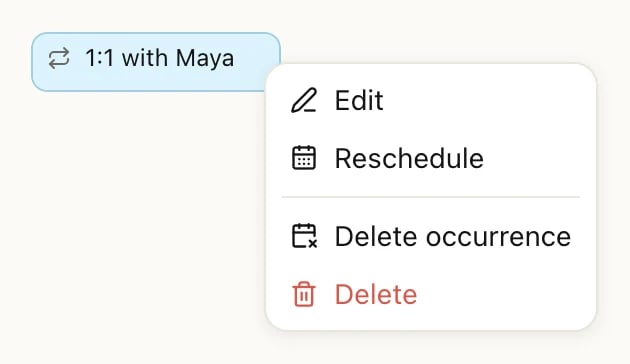
You can also drag an occurrence to another day or time on the calendar, or drag a future occurrence to another day in the Upcoming list. Both move only that occurrence. Reschedule next to Overdue on Today moves only the missed occurrence, too.
Stop a repeating task
You have three ways to stop, depending on what should happen to the task:- Finish it for good: open the task, click ⋯ at the top right and choose Complete forever. It leaves your lists, its occurrences leave the calendar, and it appears under Views → Completed. There’s no Undo message for this; to bring the task back, click its checkbox in Completed.
- End it on a date: in Custom, set Ends to On date.
- Keep it as a one-off: set Repeat to None.
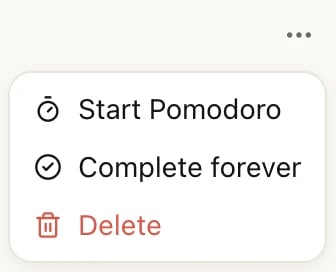
Complete forever is only in the ⋯ menu of repeating tasks
Good to know
- Typing doesn’t set a schedule. “Water plants every monday” sets the date to next Monday but doesn’t repeat. Use Repeat (see Type a task in one line).
- The first date doesn’t have to match. If the task’s date isn’t one of the schedule’s days, the first occurrence is the next day that is.
- Completed shows the series, not each day. A completed occurrence shows as a check mark on the calendar. The Completed view lists a repeating task only once you complete it forever.
Repeating task or habit?
A repeating task is a to-do that comes back. A habit is a routine you track: it has streaks, a completion rate and stats, and doesn’t sit in your task lists. Pay the rent with a repeating task; build a running routine with a habit. More on How Heym fits together.Related
Tasks
Dates, times, priorities and completing tasks.
Calendar
See every occurrence and drag them around.
Habits
Track routines with streaks and stats.
Reminders
Get a nudge before each occurrence.