

Put the review on your calendar
A review you have to remember is a review you skip. Make it a repeating task so it shows up every week, with a reminder.1
Create the task
Press C, type
Weekly review and click Create. The task goes to your Inbox until you give it a date.2
Pick a day and time
Open the task and click Date. Choose the day you want to review, for example Sunday, and set a Start time and a Duration.
3
Make it repeat
In the same picker, click Repeat and choose Weekly. The task now repeats on that weekday. For another rhythm, such as every other week, use Custom. See Repeating tasks.
4
Set the reminder
Click Reminders. When you picked the day, Heym already added your default reminder, for example On the day at 9:00 AM (unless you’ve turned the default off). Click × next to it if you don’t want it, then choose At start to get a nudge when the review begins. Reminders explains when they arrive and where to change the default.
5
Write down what to go through
In the task’s description, write what you want to look at each week, for example your areas, your goals and next week’s three priorities.
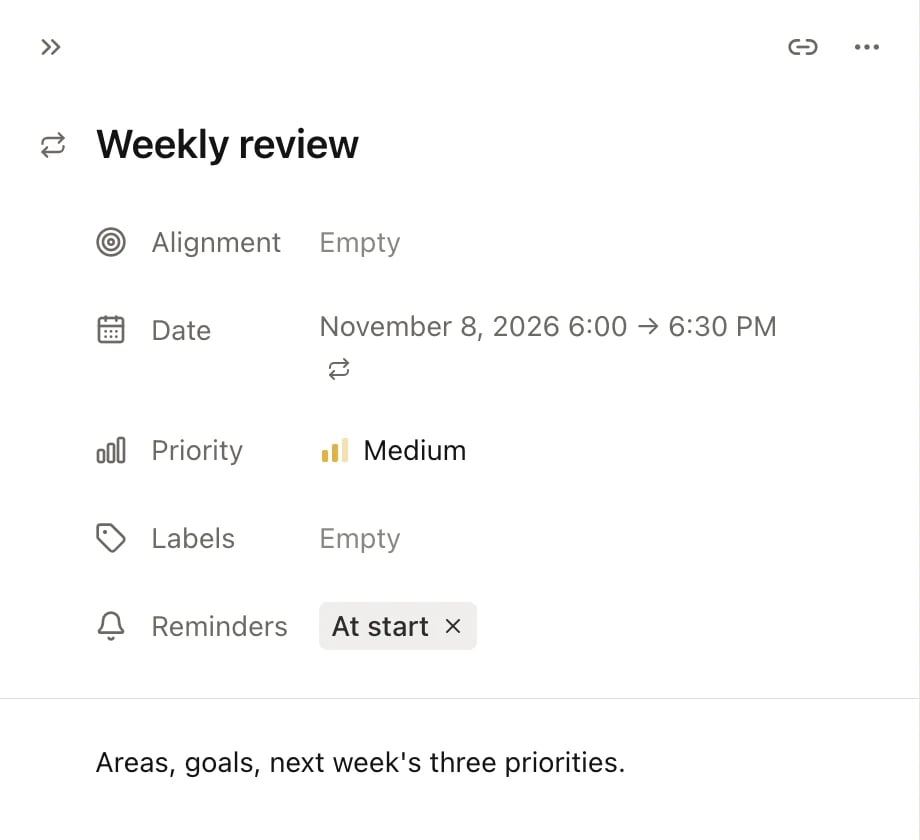
The Weekly review task, opened from Upcoming
Look back at last week on Home
Open Home and scroll to Activity. Each square is one day of the last 12 months, and the darker it is, the more you completed that day. Point at a square to see the count for that day.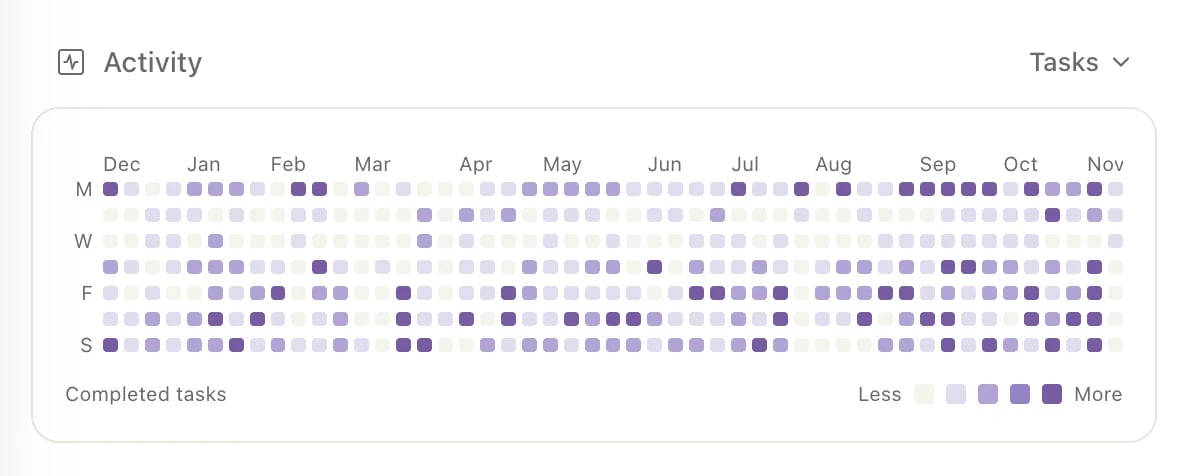
Check your goals
Open Goals. Each goal shows its Progress and how much time is left before its Deadline.- Click the view settings button at the top right and set Sort to Deadline to see what’s due first.
- For a goal you track by hand, open it and click Update to log where you are now. See Goals.
- If a goal hasn’t moved in weeks, decide on one task that moves it and give that task a date.
Check your habits
Open Habits. The page shows one week, Monday to Sunday by default, and the bar on each habit shows how much of that week’s schedule you’ve done. Use the arrows next to the dates to look at the previous week. Click a habit to open it and see its Current streak, Completion rate and Perfect weeks. If a habit keeps slipping, change its schedule or target rather than letting the misses pile up. See Habits.Empty the Inbox
Open Inbox and go through it top to bottom. For each task, do one of these:
A task leaves the Inbox as soon as it has a date or an alignment. A label or a priority alone doesn’t move it. To change several tasks at once, select them with X and press ⌘K. More in Inbox, Today and Upcoming.
Catch up on overdue tasks
Open Today. Tasks from earlier days that you haven’t completed are listed under Overdue. Check off the ones you did and delete the ones that no longer matter. Then click Reschedule next to Overdue and pick a day next week to move all the rest there at once.Lay out next week in Upcoming
Open Upcoming, click the view settings button at the top right and choose Calendar, then click W to see a whole week. Click › at the top right to move to next week. Your habits show up too, at their time if they have one.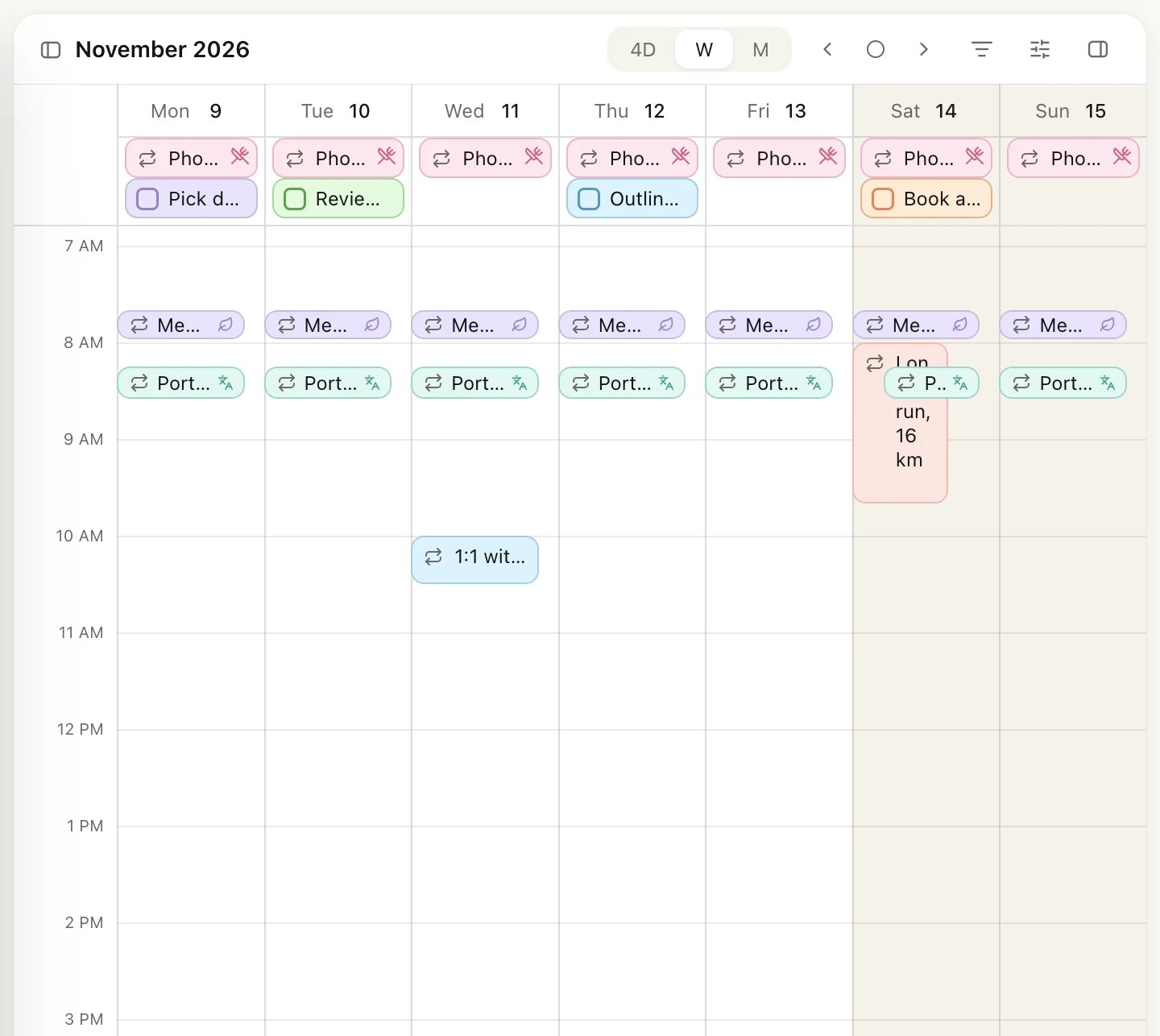
Next week in Upcoming's week calendar
- Drag a task to another day or time to move it, or drag its bottom edge to change how long it takes.
- Click the button at the far right of the calendar header to open the All tasks list, then drag a task from it onto the week to give it a date and time.
- Leave room. A week planned to the minute falls apart by Tuesday.
Keep notes from your review
A short note each week makes the next review easier: what went well, what got in the way, next week’s three priorities.- Open Areas and pick an area to keep your reviews in, for example Growth & Learning.
- Scroll to Notes and click Add note. The note is linked to that area and appears on the area’s page.
Good to know
- Your week starts on Monday unless you change it. Go to Settings → Date & time → Week start. It changes the week in Upcoming, the calendar and Habits.
- Nothing in Heym is “the review”. There’s no special review screen or score. The routine is the order you visit these screens in, so change it to suit you.
Related
Inbox, Today and Upcoming
What lands where, and how to sort and filter each list.
Calendar
Drag tasks onto times and see your habits beside them.
Yearly goals
The yearly version of this routine, with a monthly check-in.
Getting Things Done
Capture, clarify and organize with the Inbox, projects and labels.