

Sharing is part of Heym Pro, for both the person who shares and the person who accepts. Compare plans.
What you can share
You can share a life area, a goal or a project. Access carries down to what’s inside it:
Habits are never shared, even when they belong to a shared goal or life area. Single tasks and notes can’t be shared on their own. Put a task in a shared project, goal or life area, or link a note to a shared goal or life area.
Invite someone
1
Open what you want to share
Go to the life area, goal or project and open its page.
2
Click Share
Click Share at the top right of the page.
3
Add their email
Type the person’s email address in Add people by email…, then choose Can edit or Can view next to it.
4
Click Invite
Click Invite, or press Enter. The person appears under People with access, marked Pending until they accept.
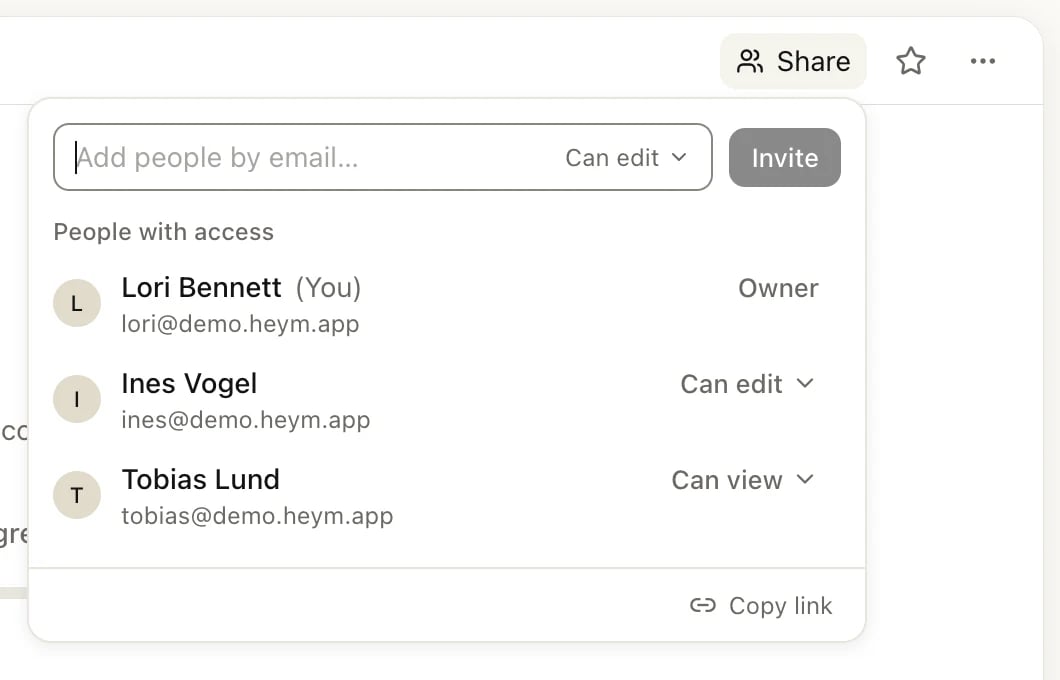
The Share window of a project shared with two people
Can edit or Can view
New invitations start at Can edit. Only the owner, the person who shared, can invite people or change their access.
Accept or decline an invitation
An invitation appears in the sidebar under Shared, with the item’s name and who it’s from. A number next to Shared counts the invitations waiting for you.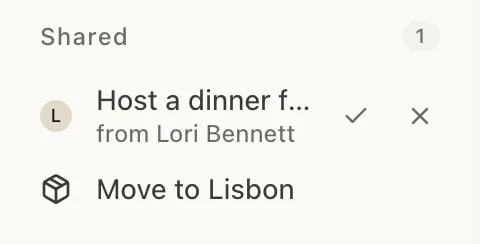
- Click the check mark to accept. The item stays in your sidebar under Shared, and what’s inside it shows up in your lists next to your own things. Today and Upcoming leave out tasks assigned to someone else and tasks in anything you can only view, and shared tasks never show in your Inbox (see Inbox, Today and Upcoming).
- Click the cross to decline. The invitation disappears.
Change someone’s access or remove them
Click Share, then click Can edit or Can view next to the person’s name.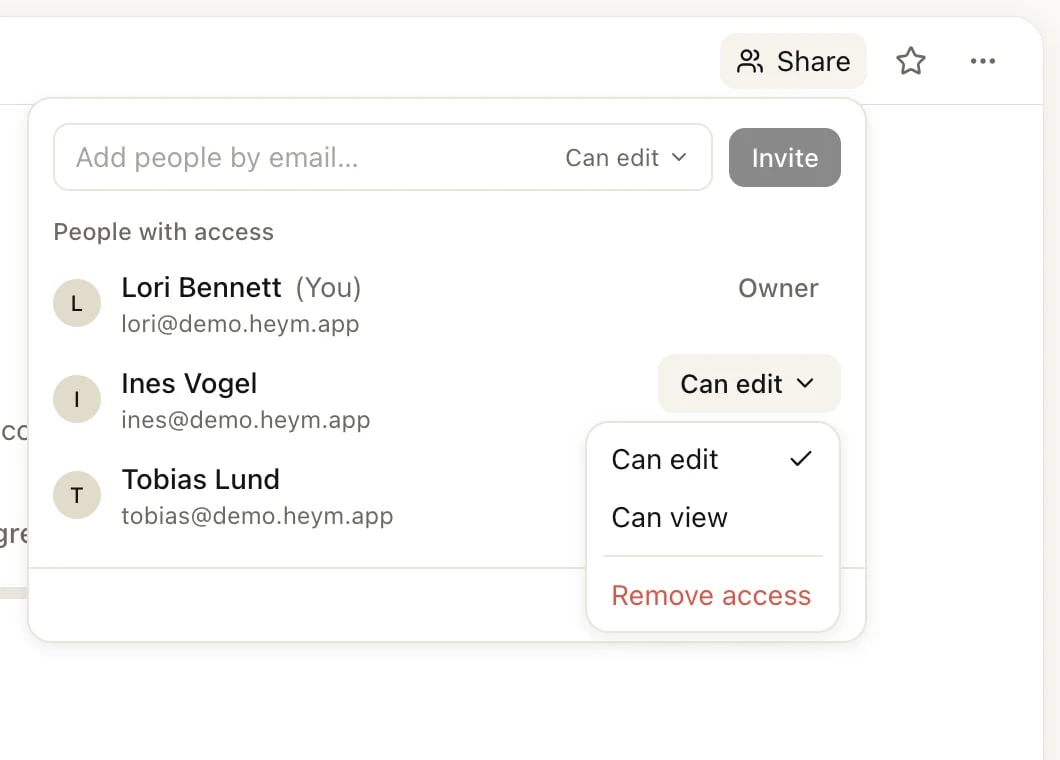
- Choose Can edit or Can view to change what they can do.
- Choose Remove access to take the item away from them. This also cancels an invitation that hasn’t been accepted yet.
Leave something shared with you
1
Open the shared item
Click it under Shared in the sidebar.
2
Click Shared
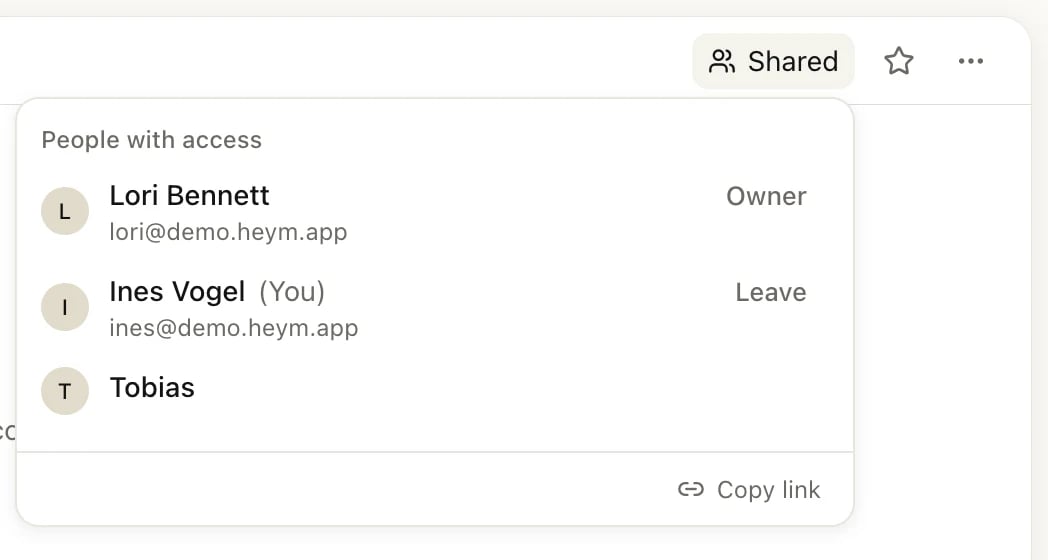
Click Shared at the top right of the page. A window lists the owner and the other people with access.
3
Click Leave
Click Leave next to your own name, then confirm with Leave.
Assign tasks
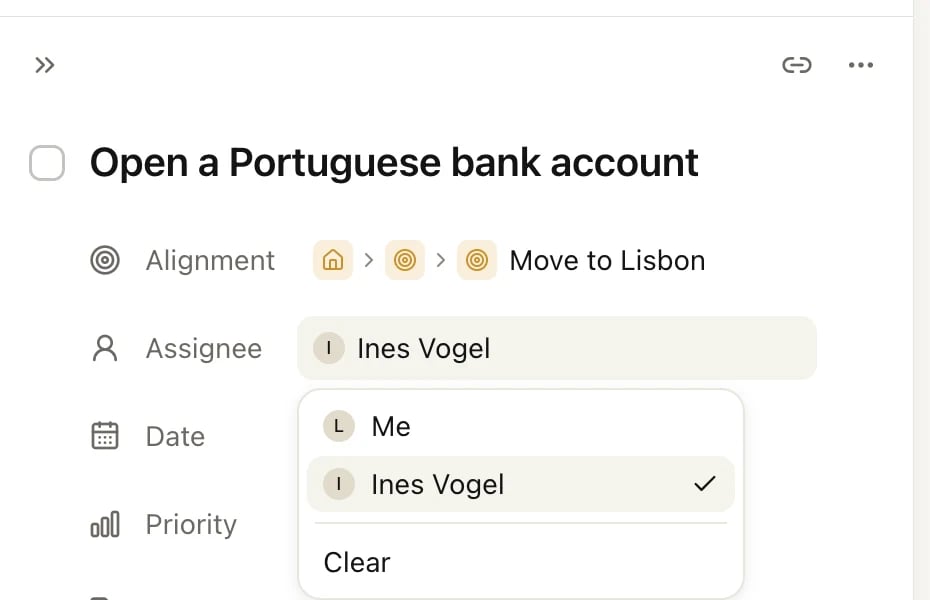
Inside a shared item, a task can be assigned to the owner or to anyone who Can edit.- Open the task.
- Click Assignee.
- Choose a person, or Me. Clear removes the assignee.
Notifications
When someone assigns you a task, you get a notification in Heym and an email. The bell at the top of the sidebar shows a dot when you have unread notifications. Click it to see them, click one to open the task, or click Mark all read. To mark a single notification read or unread, point at it and click the button at its right (Mark as read or Mark as unread). The bell appears once you share something or accept a share. To stop the emails, turn off Notification emails in Settings → Notifications. Notifications in Heym stay on.Sharing and your plan
Sharing needs Pro on both sides: the owner to invite people, and each person to accept. On Free:- Clicking Share on something you haven’t shared yet asks you to upgrade.
- Accepting an invitation asks you to upgrade. You can still decline it.
- You can still open Share on what you already shared, to remove people or switch them to Can view. Inviting people and switching them to Can edit need Pro.
- You can always leave something shared with you.
- What’s already shared stays shared: items you shared, and invitations you accepted while you had Pro, keep working.
Good to know
- What others see about you. Everyone in a share sees each other’s names and photos. The owner sees the email address of everyone they invited, and everyone sees the owner’s. See Your account.
- Shared tasks are marked. In your lists, tasks from a shared item show a small people icon.
- Deleted tasks go to Trash. When someone deletes one of your tasks in a shared item, it goes to your Trash, marked Deleted by and their name. See Undo and Trash.
Related
Projects
Plan a shared project with sections and milestones.
Views and filters
Find the tasks assigned to you.
Free, Pro and Lifetime
What’s included in Pro.
Reminders
Which emails Heym sends.