

Use Heym in your browser
Go to heym.app/login and sign in. There’s nothing to install, and it works on any computer with a web browser, including a Windows PC. In a narrow browser window, such as an iPad in portrait, the sidebar folds away. Open it with the sidebar button at the top left.Download the Mac app
The Mac app needs macOS 12 Monterey or later.1
Open the download page
Go to heym.app/desktop.
2
Pick the version for your Mac
Click Download for macOS for a Mac with Apple Silicon (an M1 chip or later). For a Mac with an Intel processor, click Download for Intel below the button.
3
Install it
Open the downloaded file and drag Heym into your Applications folder. Then open Heym from Applications.
4
Sign in
Sign in with the same Google, Apple or email account you use on the web. The Mac app explains signing in with an email code.
The download button on heym.app/desktop
What the Mac app adds
Everything you can do in Heym works the same in the browser and in the Mac app. The Mac app adds a few things a browser can’t: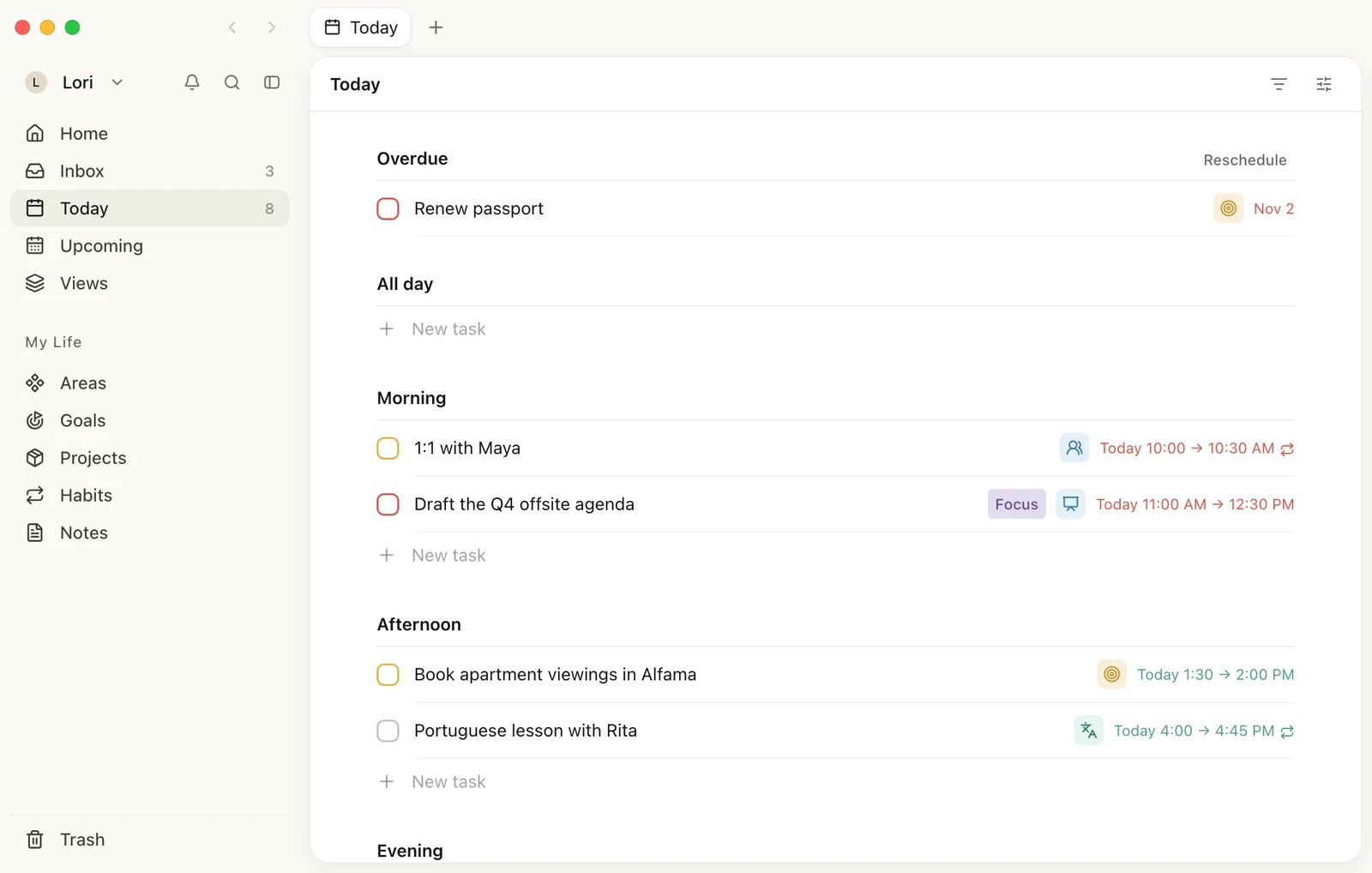
Heym for Mac, with tabs at the top of its own window
All tab shortcuts and the menu bar icon are on The Mac app. How and when reminders arrive is on Reminders.
How your devices stay in sync
Heym saves every change to your account as you make it, so it’s there when you open Heym on another device. Use the same account on every device: the data belongs to the account you sign in with. A Heym window that has been open for a while can show what it loaded earlier. To see the latest changes from your other devices, reload it: press ⌘R in the Mac app, or reload the page in your browser. The Mac app also refreshes on its own when you come back to it after five minutes or more away. If something still looks wrong, see Something looks out of date.Not available yet
- Windows app: there’s no Windows download. Use Heym in your browser.
- Android app: there’s no Android app.
- iPad app: there’s no iPad app. Use Heym in Safari on your iPad.
- API and integrations: Heym has no public API and doesn’t connect to other apps.
Related
The Mac app
Signing in, tabs, the menu bar icon and updates.
Set up Heym
Create your account and go through the first steps.
Reminders
Get a nudge before a task or habit is due.
Can't sign in
What to do when the email link or code doesn’t work.