

Undo your last action
When you complete, delete or reschedule a task, a message appears at the bottom of the window with an Undo button. Click Undo, or press ⌘Z (Ctrl+Z on Windows). In the Mac app, Edit → Undo does the same.Deleting a task, then clicking Undo
- Only while the message is on screen. It goes away after about 5 seconds, or as soon as you do something else that shows a new message.
- One step back. Undo takes back only the latest action, and there’s no redo.
- Not while you’re typing. In a task name, a description or a note, ⌘Z undoes your typing instead.
Deleting a goal, project, habit, life area or label has no Undo, so Heym asks you to confirm first. Archiving has no Undo either: bring an archived item back with Restore (see Archive instead of deleting).
Find deleted tasks and notes in Trash
Click Trash at the bottom of the sidebar, or press G then B. Switch between Tasks and Notes at the top right. Each item shows when it was deleted.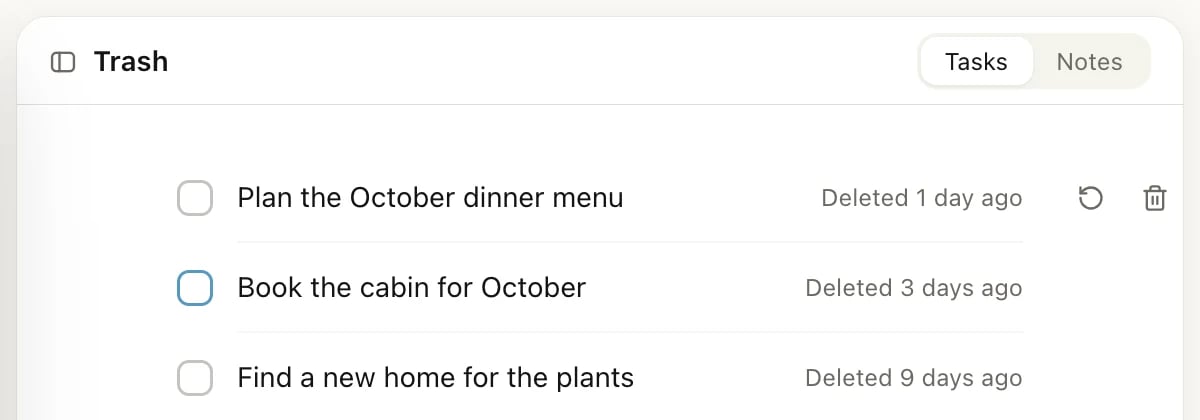
Restore a task or note
- Open Trash and choose the Tasks or Notes tab.
- Point at the item and click the round arrow at the end of its row (Restore).
Delete something for good
- In Trash, point at the item and click the trash can at the end of its row (Delete permanently).
- Confirm in the Delete task permanently? or Delete note permanently? window.
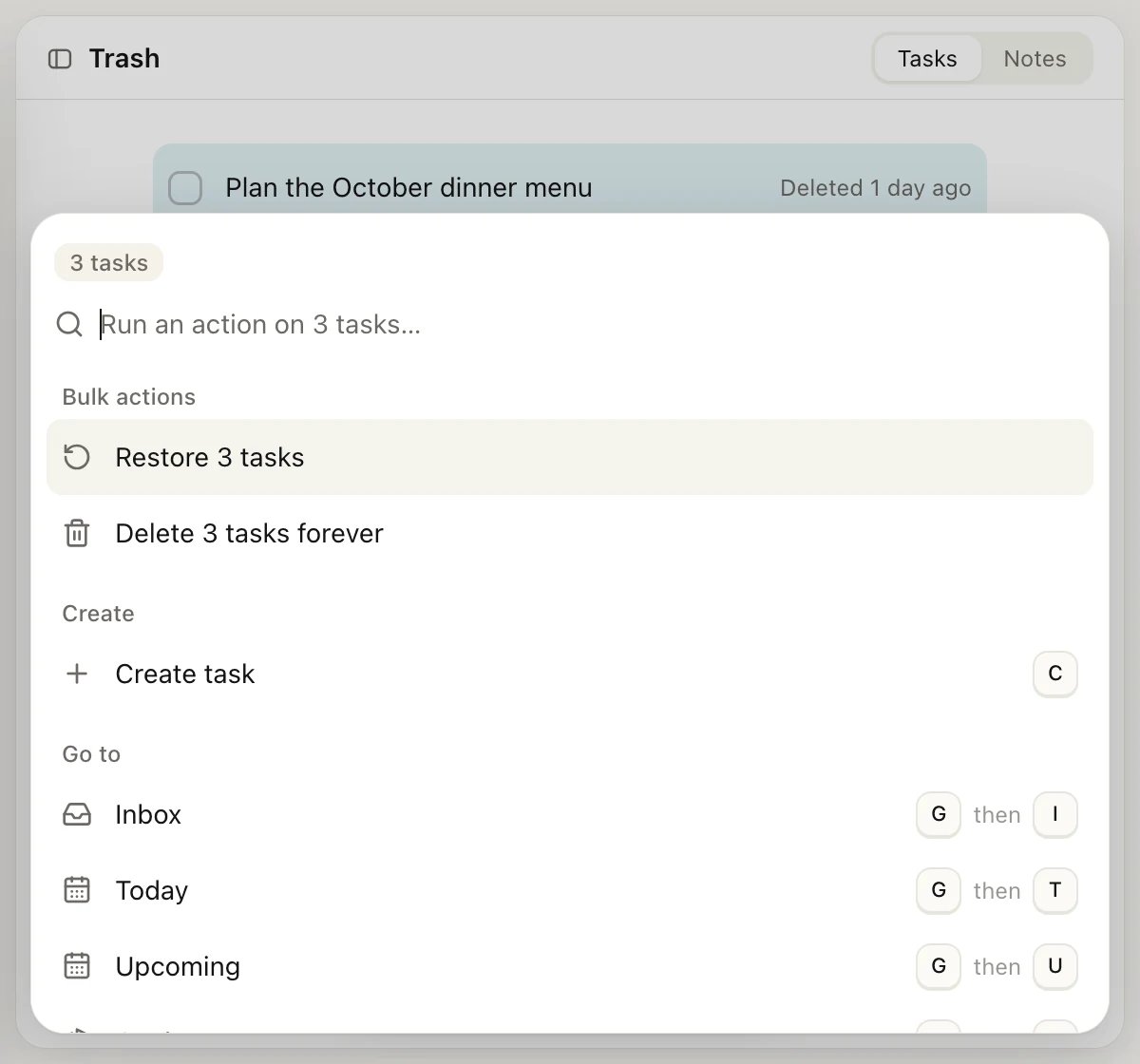
What deleting each item does
To remove just one occurrence of a repeating task, see Repeating tasks.
Archive instead of deleting
If you might want a goal, project, habit or life area again, archive it. Archiving takes it out of your lists without deleting anything, and you can bring it back at any time.- Open the item’s ⋯ menu and choose Archive.
- To find it again, open View settings on the Goals, Projects, Habits or Life areas page and turn on Show archived.
- Open the item’s ⋯ menu and choose Restore.
Good to know
- A task loses its goal or area: when you delete a goal, its tasks stay in the goal’s life area. When you delete a life area, its tasks stay but have no area. A task left with no date and no goal, project or area shows up in your Inbox.
- Shared items: anyone who can edit a shared task or note can delete it and restore it. Trash shows who deleted it, such as Deleted by Ines. Only the owner can delete it for good. See Share with others.
- Notes in Trash don’t count toward the 20 notes on the Free plan. See Free, Pro and Lifetime.
Related
Tasks
Create, complete and delete tasks.
Notes
Write notes and attach files.
Keyboard shortcuts
Select several items and act on them at once.
Repeating tasks
Change or delete one occurrence or the whole series.