

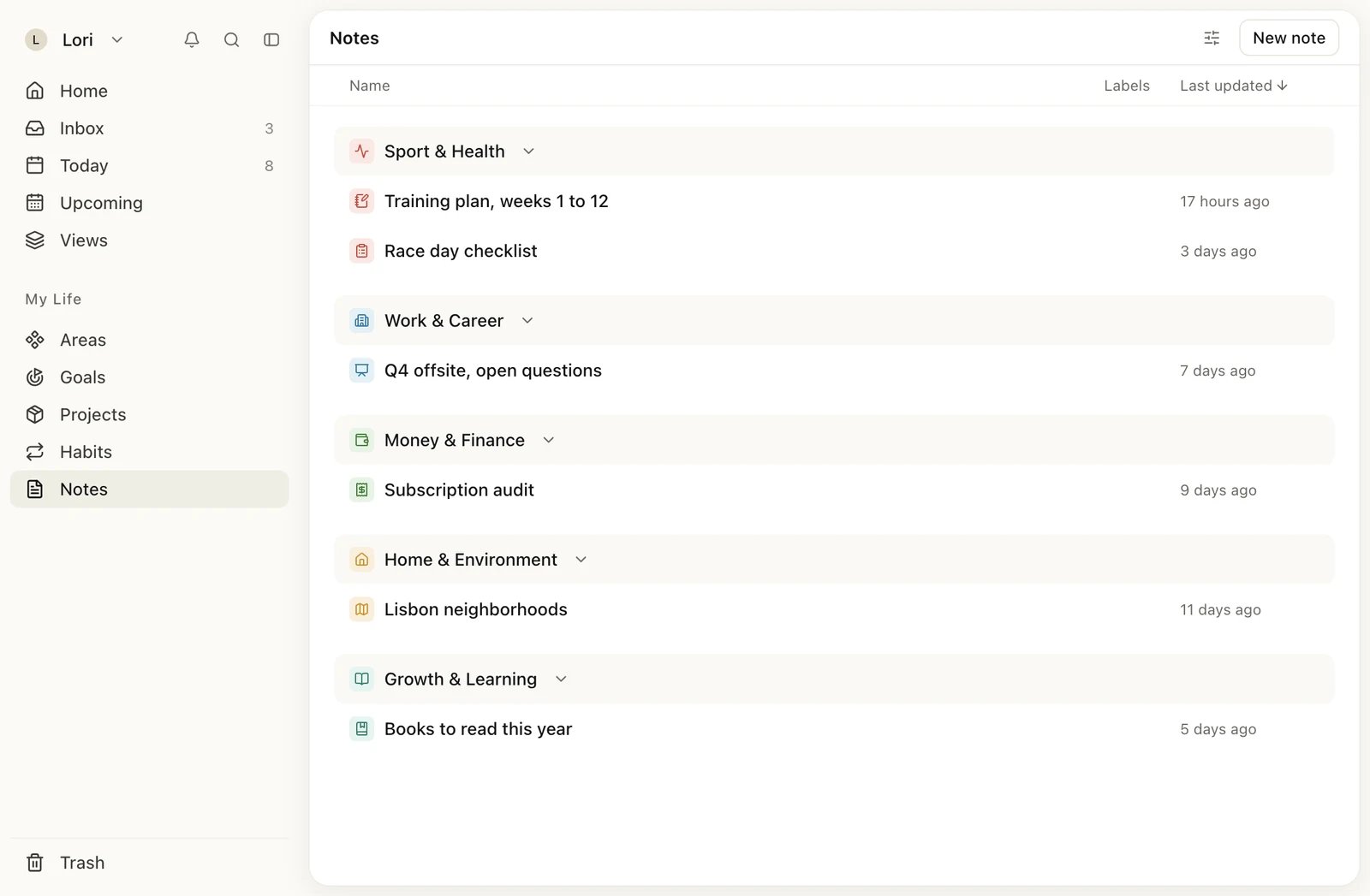
Notes, grouped by life area and sorted by when they were last changed
Find your notes
Click Notes under My Life in the sidebar, or press G then N. The list shows each note’s name, its labels and when it was last updated. To find a note by its title from anywhere, use search (⌘K). Click View settings (the sliders button next to New note) to change the list: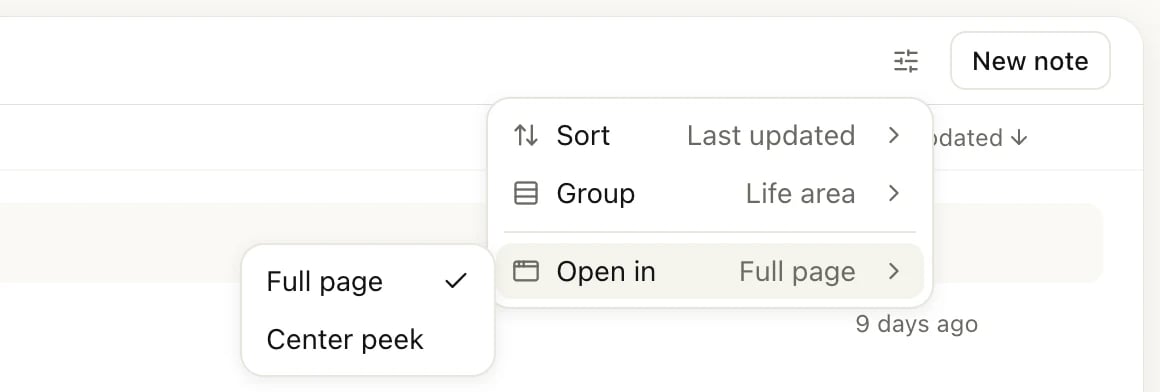
Create a note
1
Open Notes
In the sidebar, click Notes.
2
Click New note
Click New note at the top right. The note opens with the cursor in the title.
3
Write
Type a title, then press Enter to move down into the body and start writing.
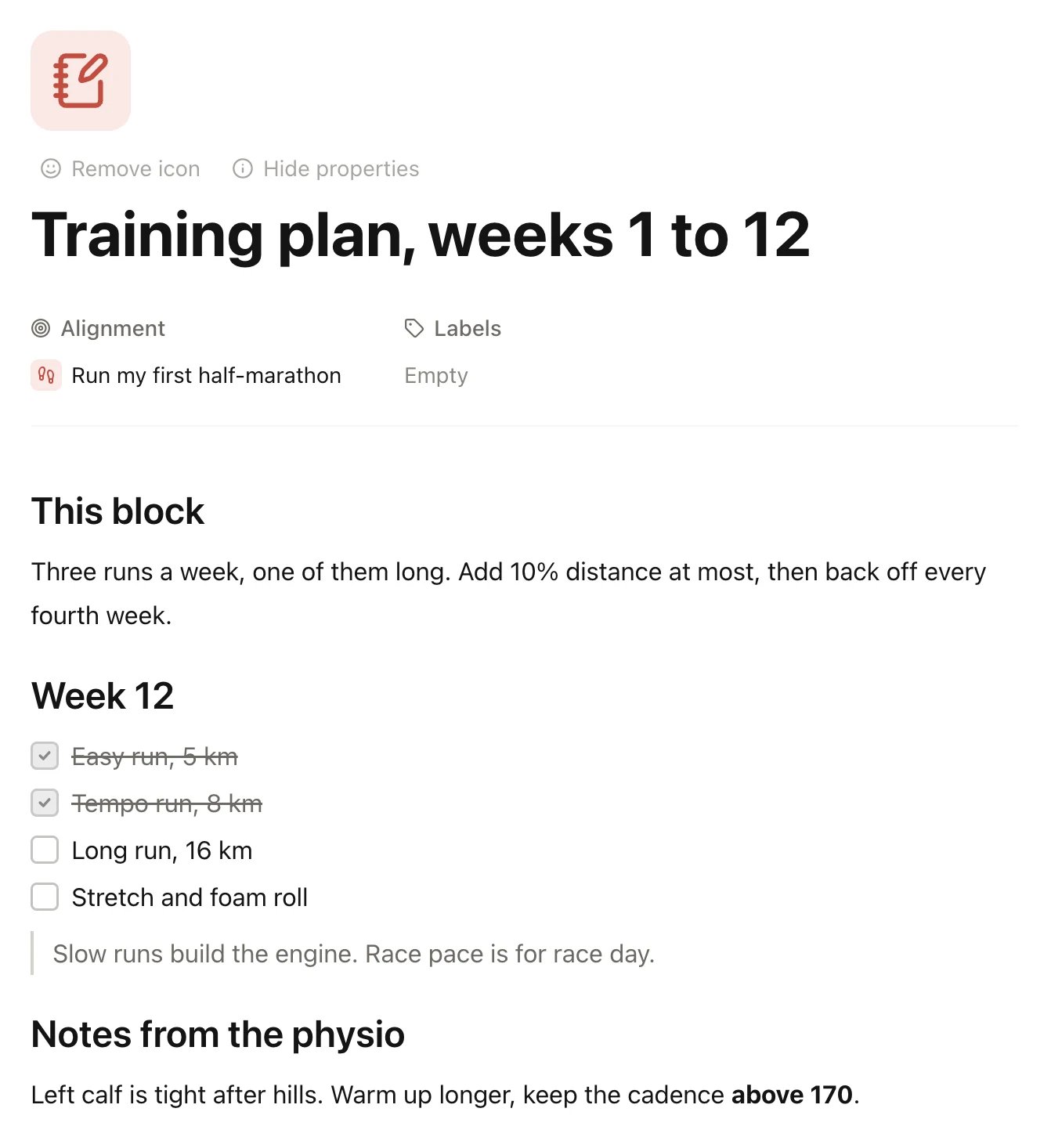
A note opened as a full page, with Alignment and Labels showing
Format your writing
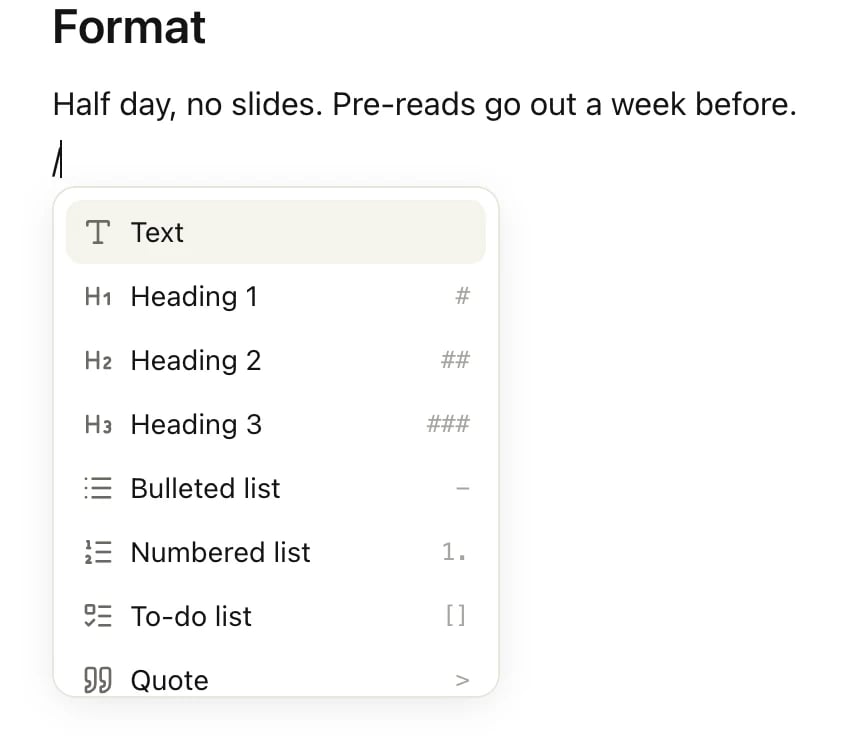
Type/ at the start of a line to open the block menu. Pick a block, or keep typing to filter the list.
Inside a line,
**bold**, *italic*, `code` and ~~strikethrough~~ format the text as you type.
To format words you’ve already written, select them. A small toolbar appears with bold, italic, underline, strikethrough, code and link. Links have to start with http:// or https://. Keyboard shortcuts for all of these are in Keyboard shortcuts.
Add images, videos and files
- Media in the
/menu: choose an image or a video from your computer. You can also drag an image or video into the note, or paste it. - File in the
/menu: attach a document such as a PDF, a Word or Excel file, a CSV or text file, or a ZIP archive. Click the file in the note to open it, or use its download button.
Link a note to a goal or life area
- Open the note and point at the space just above the title.
- Click Show properties.
- Under Alignment, choose a goal or a life area.
Add labels and an icon
Under Labels, next to Alignment, tag the note with one or more labels. With Group set to Label, the Notes list groups notes by label. More on labels in Labels. To give a note an icon, point above the title and click Add icon. Click the icon to change it or its color. In the color list, turn on Inherit color to use the color of the goal or life area the note is linked to. To take it off again, click Remove icon.Copy a link to a note
Click the link button at the top right of an open note to copy its address. The link stays the same when you rename the note, and it only opens for people who can see the note.Delete and restore a note
To delete a note, open its ⋯ menu at the top right and click Delete. In the list, you can also click the handle next to its name and choose Delete. The note moves to Trash right away, and a message with Undo lets you take it back. To get it back later:- Click Trash at the bottom of the sidebar.
- Open the Notes tab.
- Point at the note and click the round arrow at the end of its row (Restore).
Good to know
- Notes in shared goals and areas are shared. If you share a goal or life area, the notes linked to it are visible to the people you share with, and editors can change them. See Share with others.
- Why a note is read-only. A banner at the top says why: the note is over your Free plan limit, or it belongs to something shared with you as view-only. You can still delete a note that’s over the limit.
Limits
The Free plan includes 20 notes. Pro has no limit. Notes in Trash don’t count, so moving a note to Trash frees up a spot. When you reach 20, Heym asks you to upgrade before you create another one. See Free, Pro and Lifetime.Related
Goals
Keep plans and notes next to the goal they serve.
Undo and Trash
Bring back a note you deleted.
Labels
Tag notes and tasks across your life areas.
Keyboard shortcuts
Format faster without the mouse.