

Built-in views, label lists and filters are free. Saving your own views is part of Heym Pro. Compare plans.
The Views page
Click Views in the sidebar, or press G then V.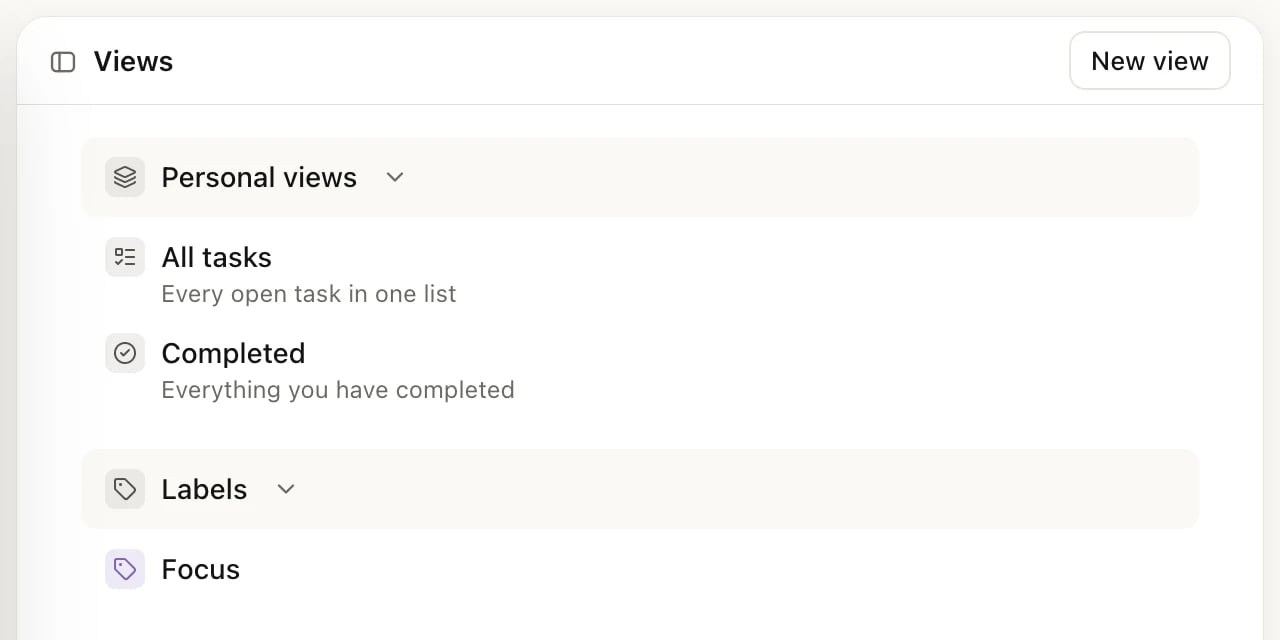
The Views page
Views show tasks only, not habits or notes.
Filter a view
1
Open a view
For example, All tasks.
2
Open the filters
Click the filter icon at the top right. A filter bar opens with a list of things to filter by.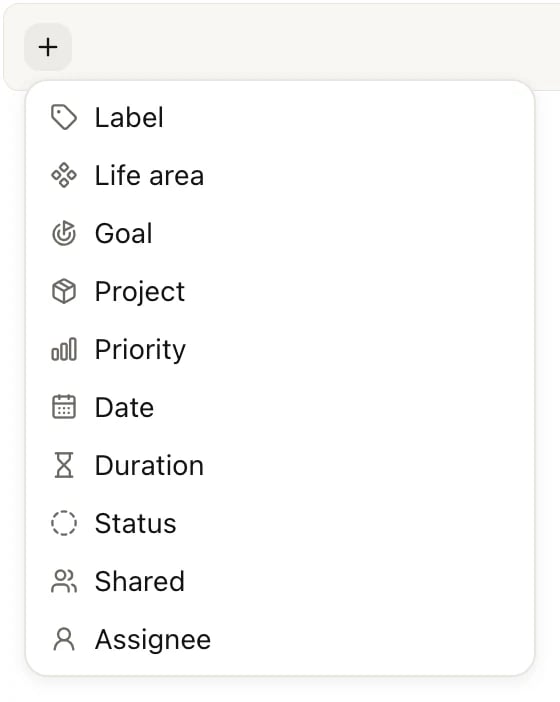
3
Pick what to filter by, then a value
Choose, for example, Priority, then High. You can pick several values. The list updates right away.
4
Add more filters
Click + in the filter bar to add another one.
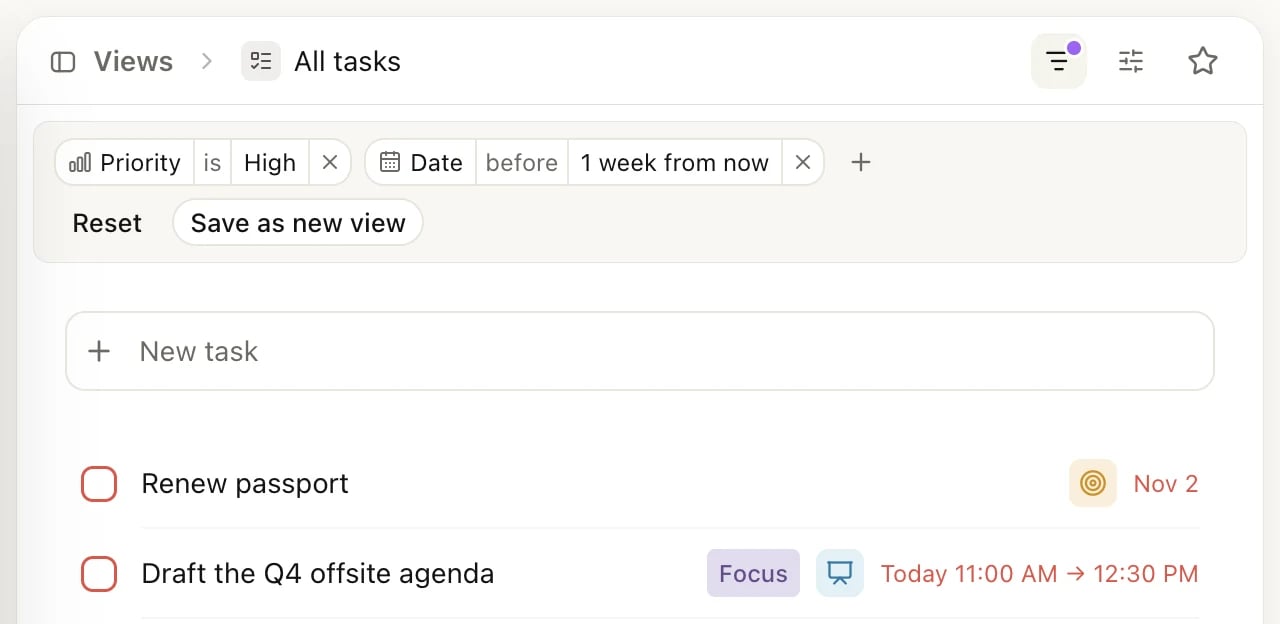
Two filters on All tasks
- Several values in one filter match any of them: Label is any of Errands, Calls.
- Several filters must all match: Priority is High and Date before 1 week from now.
- To find tasks that have two labels, add two Label filters, one for each label.
What you can filter by
The date presets such as 1 week from now mean “before that day”, so they include overdue tasks.
Sort and group a view
Click the view settings icon, next to the filter icon.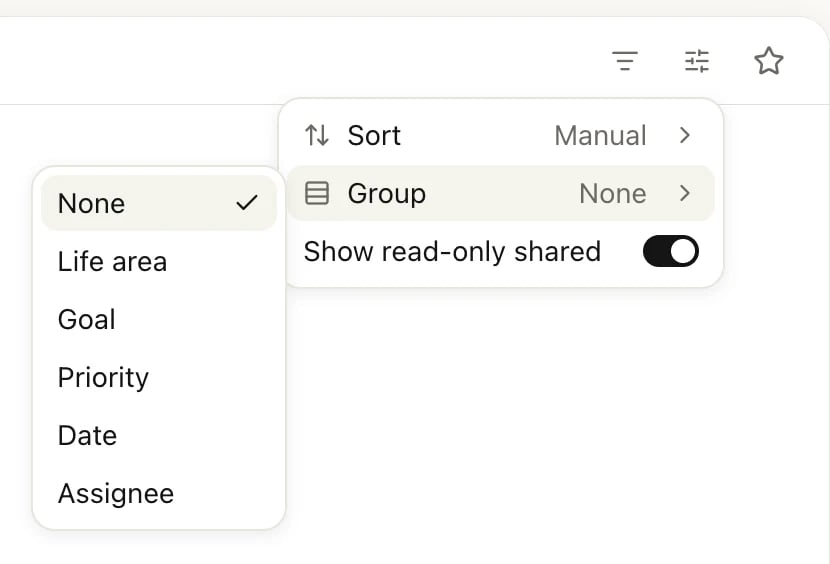
View settings, with the Group options open
Save a view
Saving a view needs Pro. There are two ways. Start from scratch:1
Click New view
On the Views page, click New view at the top right.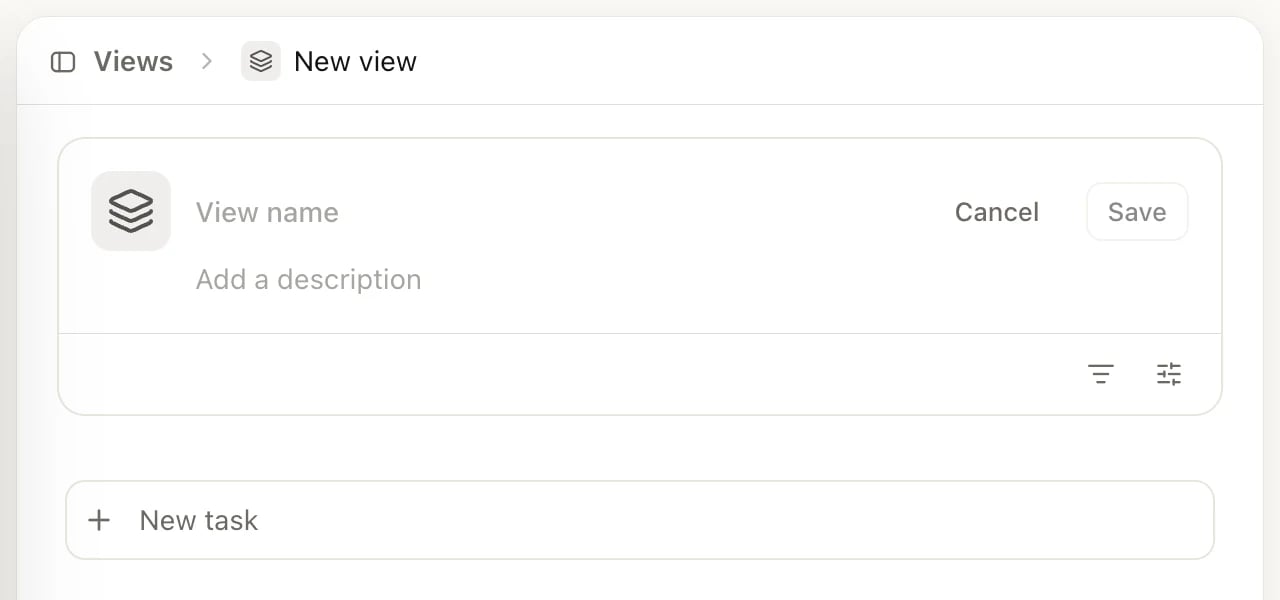
2
Name it
Type a name, and a description if you like. Click the icon to pick another icon and color.
3
Set the filters
Click the filter icon in the box to add filters, and the view settings icon to sort and group. The task list below shows what the view will contain.
4
Click Save
The new view opens, and it’s listed under Personal views.
Change or delete a saved view
Open the view and change its filters or settings. The filter bar then offers Reset and Save. Click Save, then Save to this view to update it, or Create new view to keep the original and save a copy. For everything else, click ⋯ at the top right of the view: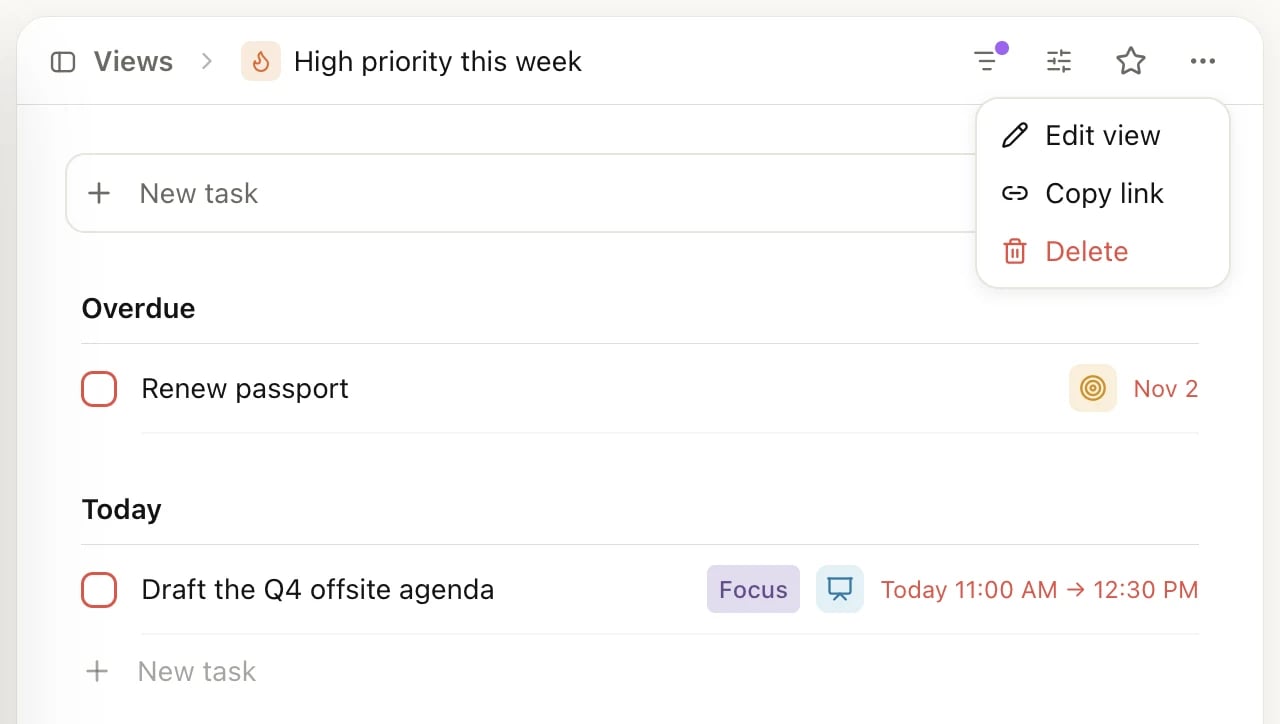
The ⋯ menu of a saved view
- Edit view: change the name, description, icon and color.
- Copy link: copy the view’s web address.
- Delete: delete the view. Your tasks are not affected.
Filter Inbox, Today and Upcoming
These lists have filters too, on every plan. Click the filter icon at the top right of the page.
Heym keeps these filters until you remove them, also after you close Heym, so a dot on the filter icon reminds you a filter is on. The filter bar starts closed each time you open the page: click the filter icon to see the filters, then Clear to remove them all.
A task you add while a filter is on gets the filter’s values; with Label is Errands, for example, a new task gets the Errands label. More about these pages on Inbox, Today and Upcoming.
Six views to set up
On the Free plan
- All tasks, Completed, Assigned to me, the label lists and all filters work on Free.
- New view and Save as new view open the upgrade window.
- If your Pro plan ends, your saved views stay, but they become read-only: you can open them, not change them. A note at the top of each says so. You can still delete them, and they’re editable again when you upgrade. See Free, Pro and Lifetime.
Related
Labels
Tag tasks and get a list per label.
Inbox, Today and Upcoming
The lists you plan your days from.
Free, Pro and Lifetime
What Pro adds, saved views included.
Share with others
Work on goals and projects together and assign tasks.