

Open Import
Click your name at the top of the sidebar, choose Settings, then Import. Under Import from, pick Todoist or TickTick. The steps for exporting from that app appear right below.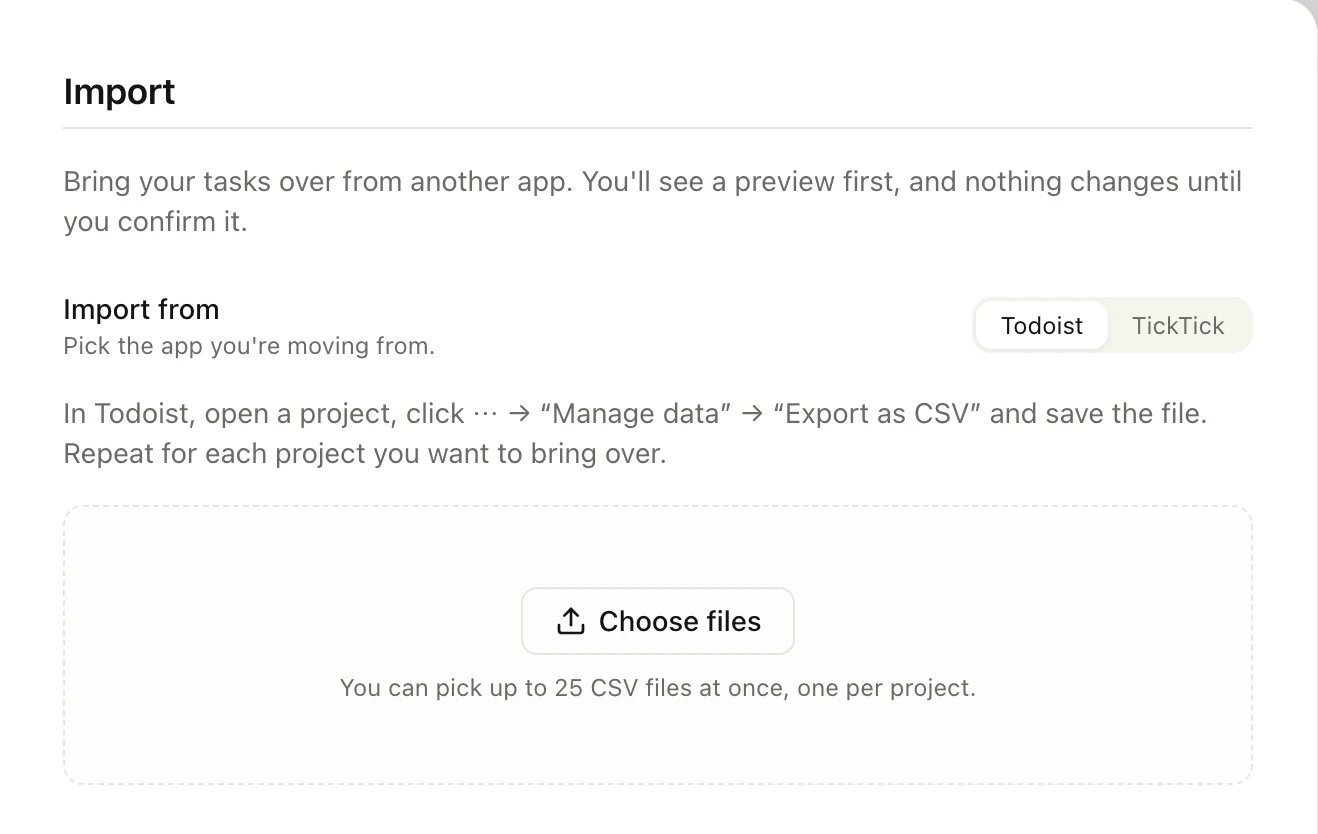
Settings → Import
Import from Todoist
Todoist exports one CSV file per project, and the file name becomes the project’s name in Heym.1
Export your projects from Todoist
In Todoist, open a project, click ⋯, then Manage data → Export as CSV, and save the file. Do this for every project you want to bring over, including your Todoist Inbox.
2
Choose the files in Heym
In Settings → Import, pick Todoist and click Choose files. You can pick up to 25 files at once.
3
Check the preview
Heym shows what it will create. See Check the preview below.
4
Import
Click Import (the button shows the number of tasks, such as Import 8 tasks). When it’s done, Heym lists what it created.
Import from TickTick
TickTick puts all your lists into one backup file.1
Make a backup in TickTick
In TickTick on the web or on your computer, open Settings → Account and click Generate Backup under Backup & Restore. TickTick downloads a CSV file.
2
Choose the file in Heym
In Settings → Import, pick TickTick and click Choose file.
3
Check the preview and import
Decide where each list goes and whether to bring completed tasks along, then click Import.
Check the preview
The preview’s first lines sum up the import: how many tasks, how many new projects and sections, how many tasks go to the Inbox, and which new labels Heym will create. Below that, it says whether every row was read or lists what won’t come across exactly.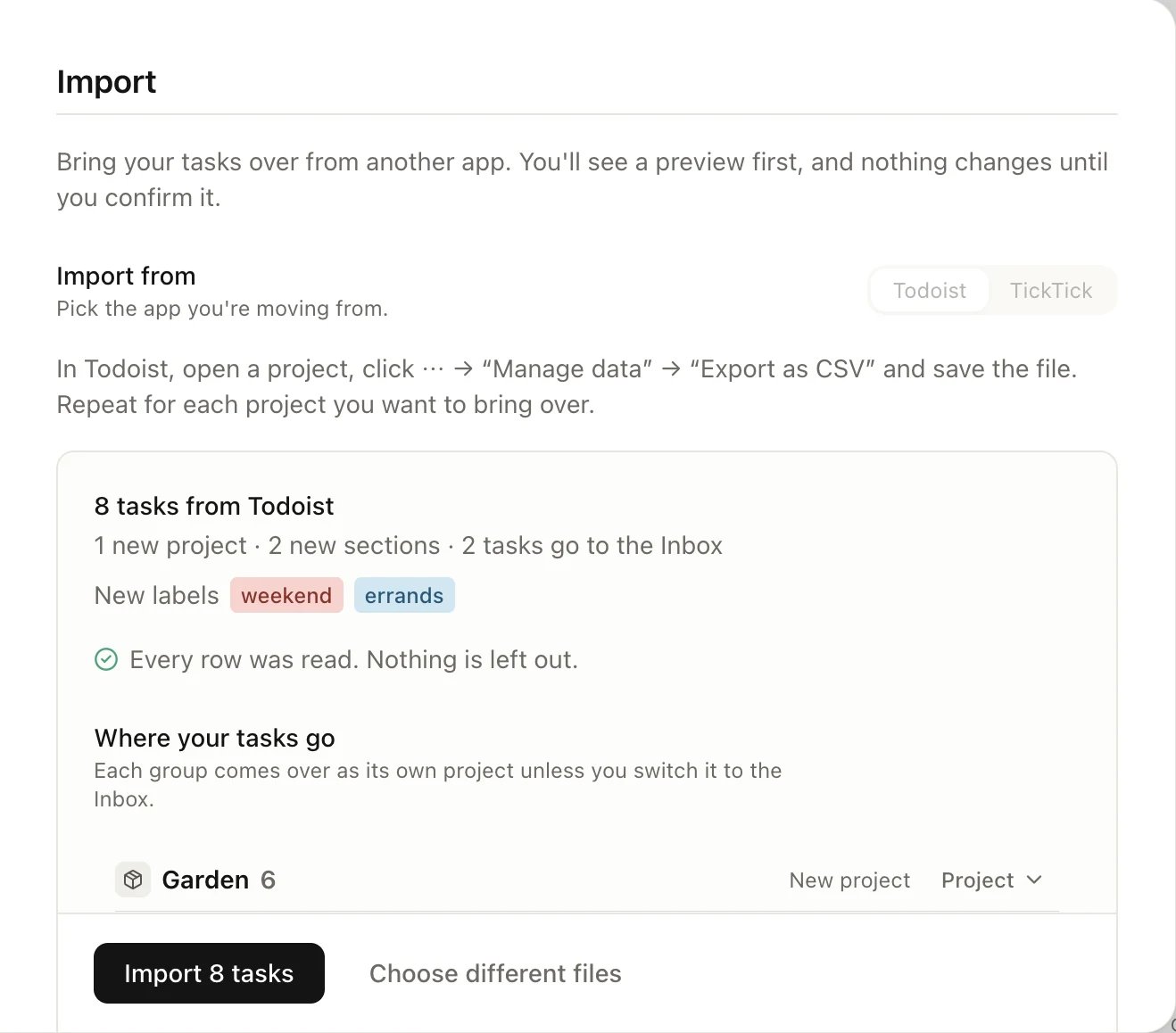
The preview of two Todoist files
Choose where each group goes
Under Where your tasks go, every Todoist project or TickTick list is a group with its tasks. Each group becomes its own project in Heym, unless you send it to your Inbox:- Click Project next to a group’s name and choose Inbox to put its tasks in your Heym Inbox instead.
- New project means Heym will create the project. Adds to existing project means you already have a Heym project with that name, and the tasks go into it.
- Your Todoist or TickTick inbox goes to your Heym Inbox.
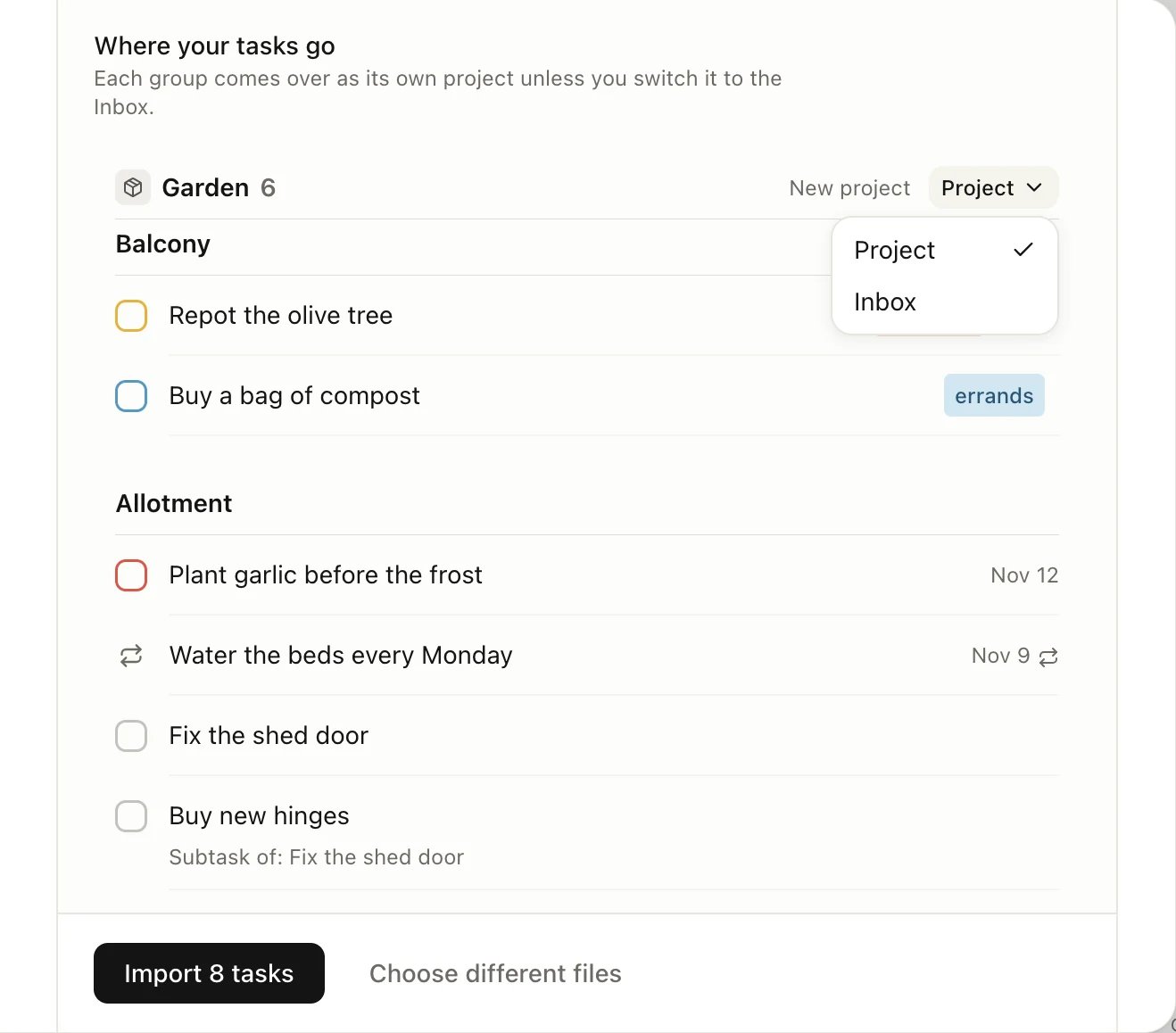
Send a group to the Inbox instead of a new project
Read the notes about changes
If some tasks can’t come across exactly as they are, the preview says so. Click a line such as 2 tasks import with changes or 1 row skipped to see which tasks and why: a date Heym couldn’t read, a repeat it doesn’t support, a dropped assignee. Tasks with changes still import, just without that part. One exception: a Todoist repeat Heym doesn’t support imports without a date, so give the task its date and repeat again afterwards. Skipped rows don’t import.Bring completed tasks along (TickTick)
TickTick backups include completed tasks. They’re left out unless you turn on Include completed tasks at the bottom of the preview. They then import already checked off.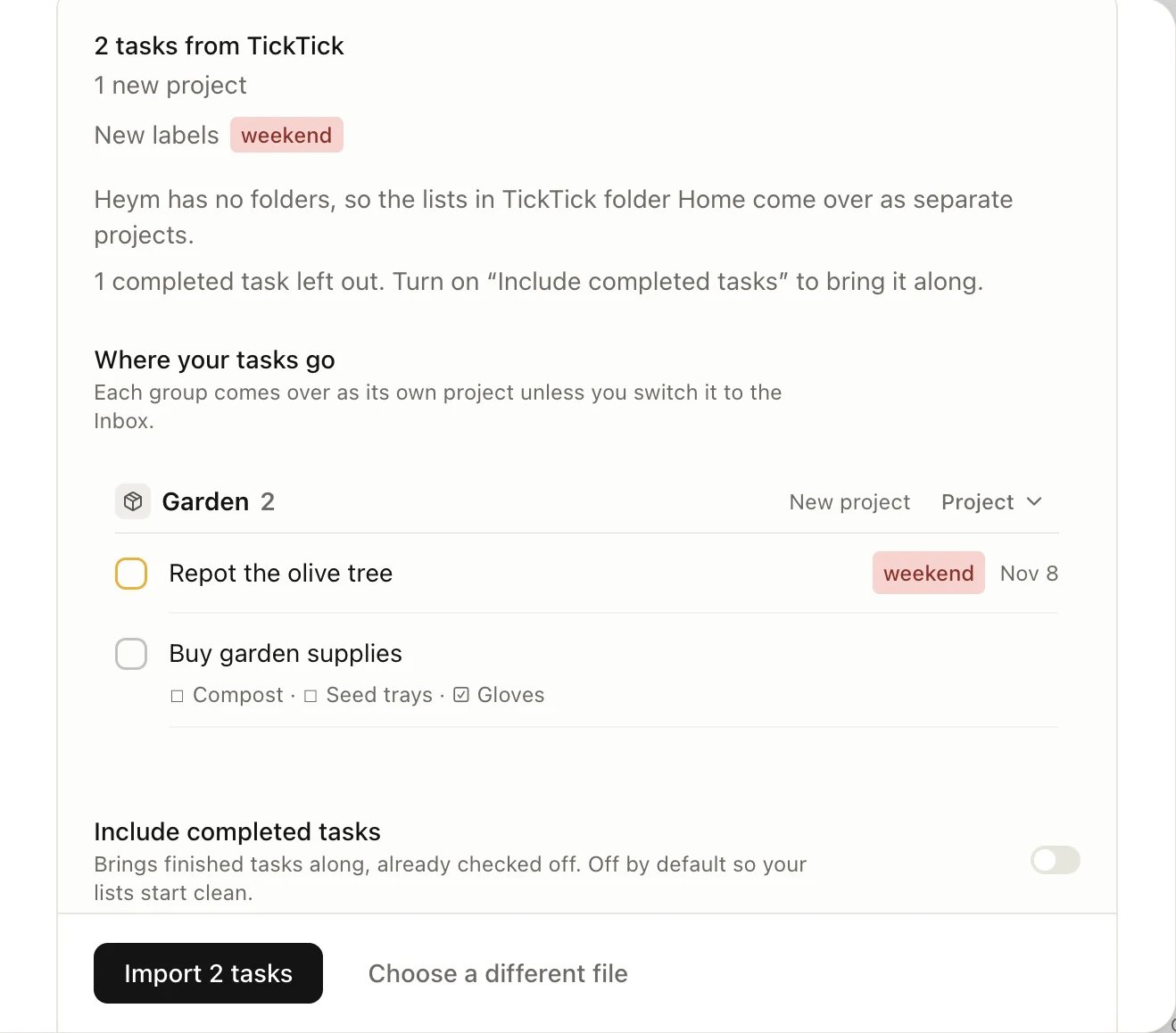
A TickTick preview
What comes across
A Todoist task with a deadline but no date gets the deadline as its date.
These don’t come across:
- Todoist reminders and assignees. Tasks import without them, and the preview lists each one.
- TickTick folders. Heym has no folders, so each list in a folder becomes its own project.
- TickTick notes and tasks marked Won’t do. They’re skipped.
- Dates written in another language. Heym reads Todoist dates written in English. Others import without a date, and the preview says so.
What happens if…
I import the same files twice
Heym remembers what it imported and skips it. The preview says how many tasks were imported before and will be skipped. Only new tasks come across. Tasks you imported and then deleted still count while they’re in Trash, so Heym skips them. To import them again, delete them for good from Trash first, or restore them instead. See Undo and Trash. Todoist exports have no task IDs, so Heym recognizes a Todoist task by its project, section, title, date and description. If you changed a task in Todoist since the last import, it counts as new and comes across again.I want to undo an import
An import can’t be undone in one step. To take it back:- Delete each new project it created: open the project, click ⋯ at the top right, choose Delete and confirm. Its tasks move to Trash. See Projects.
- Delete the other tasks it brought in yourself: the ones it added to a project you already had, and the ones it sent to your Inbox. Dated Inbox tasks are in Today and Upcoming.
- Labels it created stay until you delete them. See Labels.
Something went wrong
If Heym can’t read the files, it says so and shows no preview. Use each file exactly as Todoist or TickTick exported it, then try again. If you picked the wrong kind of file, the preview says Nothing new to import. and 1 row skipped. Click 1 row skipped to see why, for example This isn’t a Todoist export. If the import itself fails, nothing is changed, so you can try again.Limits
- 25 files at once from Todoist. Import the rest in a second round.
- 4 MB per file and for all files together.
- 5,000 tasks per import. If there are more, import the same files again: Heym skips what’s already there and brings in the next batch.
- 5,000 characters per description. Longer descriptions are cut off at the end.
- Projects on the Free plan: you can have 3 projects. If an import would create more projects than you have room for, the preview says how many are free, and you can’t click Import until the new projects fit. Send some groups to the Inbox, or upgrade to Pro.
Coming from Things 3 or Notion
Heym can’t import from Things 3 or Notion. Instead of copying everything, start with what you still use: the areas and projects you’re working on now. Old and finished items can stay where they are. How a Things 3 setup maps onto Heym:
From Notion, move pages you still read into Notes, and link each note to a goal or life area. Turn a task list into Heym tasks, ideally in a project or linked to a goal. What each block in Heym is for is on How Heym fits together.
Related
Projects
Sections, milestones and linking a project to a goal.
Labels
Rename and recolor the labels you brought along.
Inbox, Today and Upcoming
Sort the tasks that landed in your Inbox.
Free, Pro and Lifetime
Plan limits, including the 3 projects on Free.