

Typing a task with its date, time, priority, project and reminder
How it works
- Type the title and the details in any order.
- Watch for the highlight: each part Heym picks up gets a light orange background. A highlighted part becomes a detail of the task and is left out of the saved title. The example above saves as “Call the movers”.
- After #, +, ! or @, a list opens. Pick an entry with the arrow keys and Enter, or click it.
- Press Enter or click Create to save the task.
Cheat sheet
Dates and times
Write times with am or pm, or as 24-hour time.
at 3 alone means 3:00 in the morning. noon only counts next to a day, such as today noon or noon tomorrow; on its own it stays plain text.
Typed next week is 7 days from today. The Next week button in the date picker picks the first day of next week instead (see Tasks).
Duration
A duration can go anywhere in the title, also next to a time:
9am 1h starts at 9:00 AM and lasts an hour. Durations go up to 24 hours; a longer one such as 72h isn’t picked up.
Priority
If you type more than one, the last one counts and the others stay in the title.
Labels, home, reminders and people
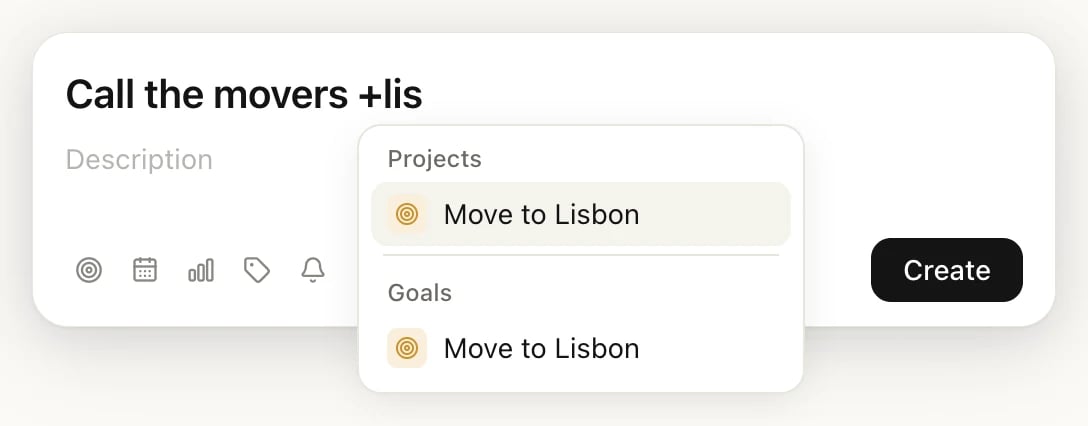
Typing + shows your projects and goals
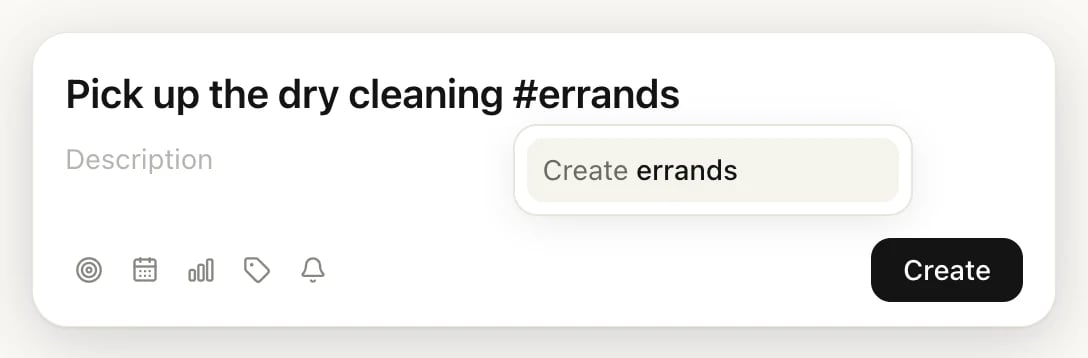
A label that doesn't exist yet
tomorrow 3pm !30m). How reminders reach you, and what you can type after !, is on Reminders.
Keep a word as plain text
Sometimes a word that’s part of the title gets picked up, such as “Tomorrow” in “Read Tomorrow and Tomorrow”.- Keep the word, drop the detail: put the cursor right after the highlighted part and press Backspace once. The highlight goes away, the word stays in the title, and Heym leaves it alone from then on.
- Drop both: click the highlighted part. The word and its detail are removed together.
Words Heym leaves alone
To avoid false matches in ordinary titles, Heym doesn’t read these as dates:- Short day names on their own:
mon,tue,wed,thu,fri,sat,sun. Write the full day, such asfriday, or add a time:fri 3pmworks. mayandmarchon their own, even after “in”. With a day they count:may 5,march 3.- Other month names on their own, such as “archive the april docs”. After “in” they count:
in aprilsets April 1. - Plain numbers, such as “Buy a 2024 calendar”.
- Words like “week” or “day” in a sentence, such as “Plan the week”.
Typing a schedule like “every monday” doesn’t make the task repeat: Heym reads “monday” as the coming Monday and keeps “every” in the title. Set the schedule with Repeat in the date picker instead. See Repeating tasks.
Typing in German
With Language set to Deutsch in Settings → Preferences, Heym reads German dates and times too:morgen, nächsten Freitag, morgen 15 Uhr. English ones such as tomorrow still work. Durations work in either language, whichever you’ve chosen: 2 Std, 30 Minuten, 2h.
In German, a short word followed by a number can read as a weekday and time: “Do 20 pushups” becomes Thursday at 20:00. Press Backspace right after the highlight to keep the words as text.
Related
Tasks
Every detail a task can have, and how to change it later.
Reminders
What to type after ! and when reminders arrive.
Labels
Rename, recolor and browse your labels.
Inbox, Today and Upcoming
Where your new task shows up.